
Add preview thumbnails
JWP supports the loading of preview thumbnails for individual shots or scenes in a video.
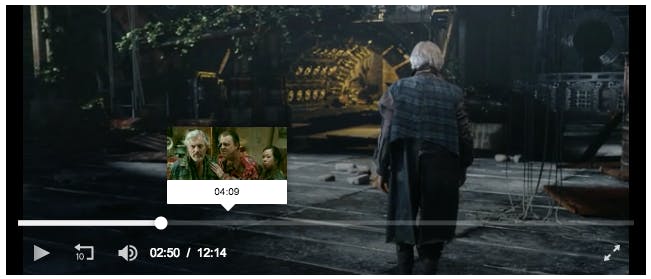
These thumbnails are displayed in a tooltip when a viewer hovers the control bar. This allows for quick scanning and navigating of longer-form content.
When provided through a thumbnail track, preview thumbnails always appear when scrubbing videos from within a mobile SDK (Android, iOS) experience or within a web experience from a desktop or large mobile device. For some smaller mobile devices, preview thumbnails only appear when scrubbing videos within a mobile web view in landscape orientation.
By default, JW Platform generates preview thumbnails for all uploaded videos.
Formatting
JWP uses WebVTT files to load Tooltip Thumbnails. WebVTT is a plain text format, part of the HTML5 standard, that's also used for providing closed captioning. When used for thumbnails, these VTT files contain links to the actual thumbnail images, which can be in JPG, PNG or GIF format.
VTT Example
Here is an example VTT file. It belongs to a 20-second video, for which 4 preview thumbnails are included:
WEBVTT 00:00.000  -->  00:05.000
/assets/preview1.jpg

00:05.000  -->  00:10.000
/assets/preview2.jpg

00:10.000  -->  00:15.000
/assets/preview3.jpg

00:15.000  -->  00:20.000
/assets/preview4.jpg
The structure of the VTT file is quite straightforward. It consists of a list of cues, which each includes:
- The range the tooltip thumbnail represents.
NOTE: The range needs to be in (HH:)MM:SS.MMM format. Only this exact notation will be parsed.
- The URL to the tooltip thumbnail for this range.
NOTE: The URL is relative to the VTT file (not to the page or player), much like images included in CSS sheets.
TIP
JWP will render the thumbnails in the tooltip using their original dimensions. Thumbnails of 100-150 pixels wide tend to work well. Smaller thumbnails are hard to decipher and larger thumbnails are too much of a distraction to the main content.
TIP
JW Platform will automatically generate thumbnails for any uploaded video.
Using Sprites
For many reasons (file sizes, load delays, server requests, etc.), having each thumbnail be a separate image is sub-optimal. Therefore, JWP supports Thumbnail Sprites; multiple thumbnails stitched together into a single image. Here is an example:

In the VTT file, the individual thumbnails can be identified by appending their coordinates to the thumbnail URL using a spatial Media Fragment, for example:
WEBVTT 00:00.000  -->  00:05.000
/assets/thumbnails.jpg#xywh=0,0,160,90

00:05.000  -->  00:10.000
/assets/preview2.jpg#xywh=160,0,320,90

00:10.000  -->  00:15.000
/assets/preview3.jpg#xywh=0,90,160,180

00:15.000  -->  00:20.000
/assets/preview4.jpg#xywh=160,90,320,180
WARNING
JWP only supports pixel-based fragments, not percentage-based ones.
Embedding
| PROPERTY | DESCRIPTION |
|---|---|
| file | URL to the WebVTT file that refers to the thumbnails (e.g. /assets/myThumbnails.vtt) |
| kind | The type of text track we are using. For thumbnails, specify thumbnails here. Otherwise, this will default to captions. |
NOTE
Tracks in JWP have two additional properties: default and label. Both are only used for Closed Captions, and ignored for Tooltip Thumbnails.
Example
Here is an example setup, loading a single video with Tooltip Thumbnails:
var playerInstance = jwplayer("myElement");
playerInstance.setup({
  playlist:  [{
    file:  "/assets/myVideo.mp4",
    image:  "/assets/myPoster.jpg",
    tracks:  [{
      file:  "/assets/myThumbnails.vtt",
      kind:  "thumbnails"
    }]
  }]
});
WARNING
VTT files are subject to cross-domain security restrictions and therefore won't automatically load from another domain than the player. See Crossdomain File Loading for more info.
RSS Feeds
When using external RSS playlists, Tooltip Thumbnails can be included using a <jwplayer:track> element. Here is an example feed, containing the same video and thumbnail track as above:
<rss  version="2.0"  xmlns:media="http://rss.jwpcdn.com/"  >
  <channel>

    <item>
      <title>Sintel</title>
      <description>Sintel is a fantasy CGI from the Blender Open Movie Project.</description>
      <jwplayer:image>/assets/myPoster.jpg</jwplayer:image>
      <jwplayer:source  file="/assets/myVideo.mp4"  />
      <jwplayer:track  file="/assets/myThumbnails.vtt"  kind="thumbnails"  />
    </item>

  </channel>  </rss>
See the RSS Feed Embed example for more info.