
Add CMAF VOD renditions
Learn how to upload CMAF VOD renditions to the JWX dashboard
The JW Platform allows you to upload video, audio, or text files that you have already transcoded to meet your own quality, bitrate, or format standards. This gives you precise control over how your content is delivered, ensuring playback that meets your broadcasting requirements.
Prerequisites
| Item | Description |
|---|---|
| Transcoded file | Externally transcoded file that adheres to the CMAF VOD renditions guidelines |
Create a CMAF VOD media item
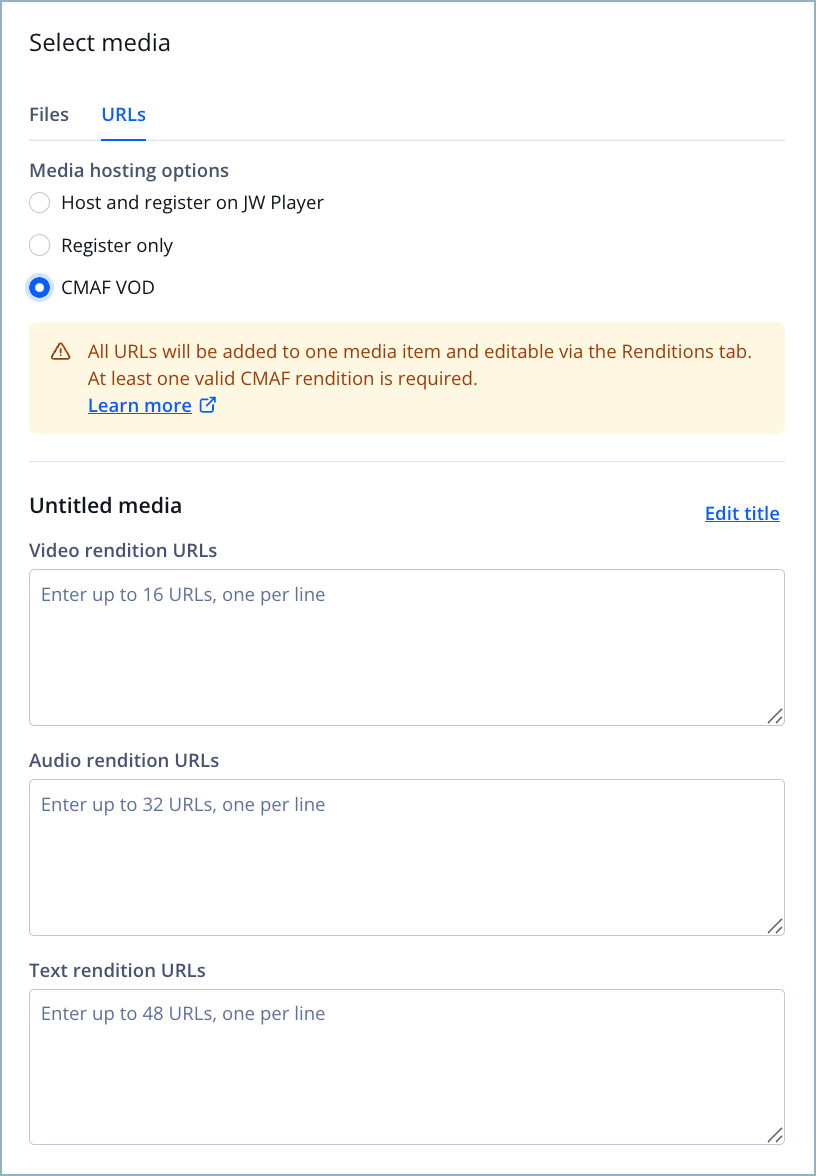
Creating a CMAF VOD media item
If you are a developer or have developer resources, you can use the Management API to create a CMAF renditions media item.
A media item moves through different states before it can be streamed:
- After at least one rendition upload is initiated, the media enters the Processing state.
- The media transitions to the Ready state when at least one video or audio rendition is successfully uploaded.
Once the media item is Ready, you can stream it using the media or playlist endpoints in the Delivery API. You can also retrieve HLS and DASH manifests from the Manifests tab for non-DRM media.
When deleting or adding new renditions to a Ready media item, the changes may require up to 15 minutes of caching time to reflect in media playback or the manifest.
Follow this step to create a CMAF VOD media item:
-
In your Media library, click Upload media. The Upload media page appears.
You can also click Upload Media from the dashboard home page.
-
Under Select media, click URLs. The URLs tab opens.
The CMAF VOD hosting type only supports URLs of CMAF renditions.
-
Under Media hosting options, select CMAF VOD. The rendition fields appear below.
-
Under Video renditions URLs, enter a list of
.cmfvrendition URLs, with one URL per line.You can upload a maximum of 16 video renditions per media item.
-
Under Audio renditions URLs, enter a list of
.cmfarendition URLs, with one URL per line.You can upload a maximum of 32 audio renditions per media item.
-
Under Text renditions URLs, enter a list of
.cmftrendition URLs, with one URL per line.You can upload a maximum of 48 text renditions per media item.
-
Finish uploading the video (steps 4-9).
If needed, you can add additional custom renditions to the created media item.
Add CMAF VOD renditions after upload
After uploading a CMAF VOD media item, you can add more CMAF video, audio, or text renditions to it using the JWX dashboard.
If you are a developer or have developer resources, you can use the Management API to upload your CMAF VOD video, audio, and text renditions.
Upload a video rendition
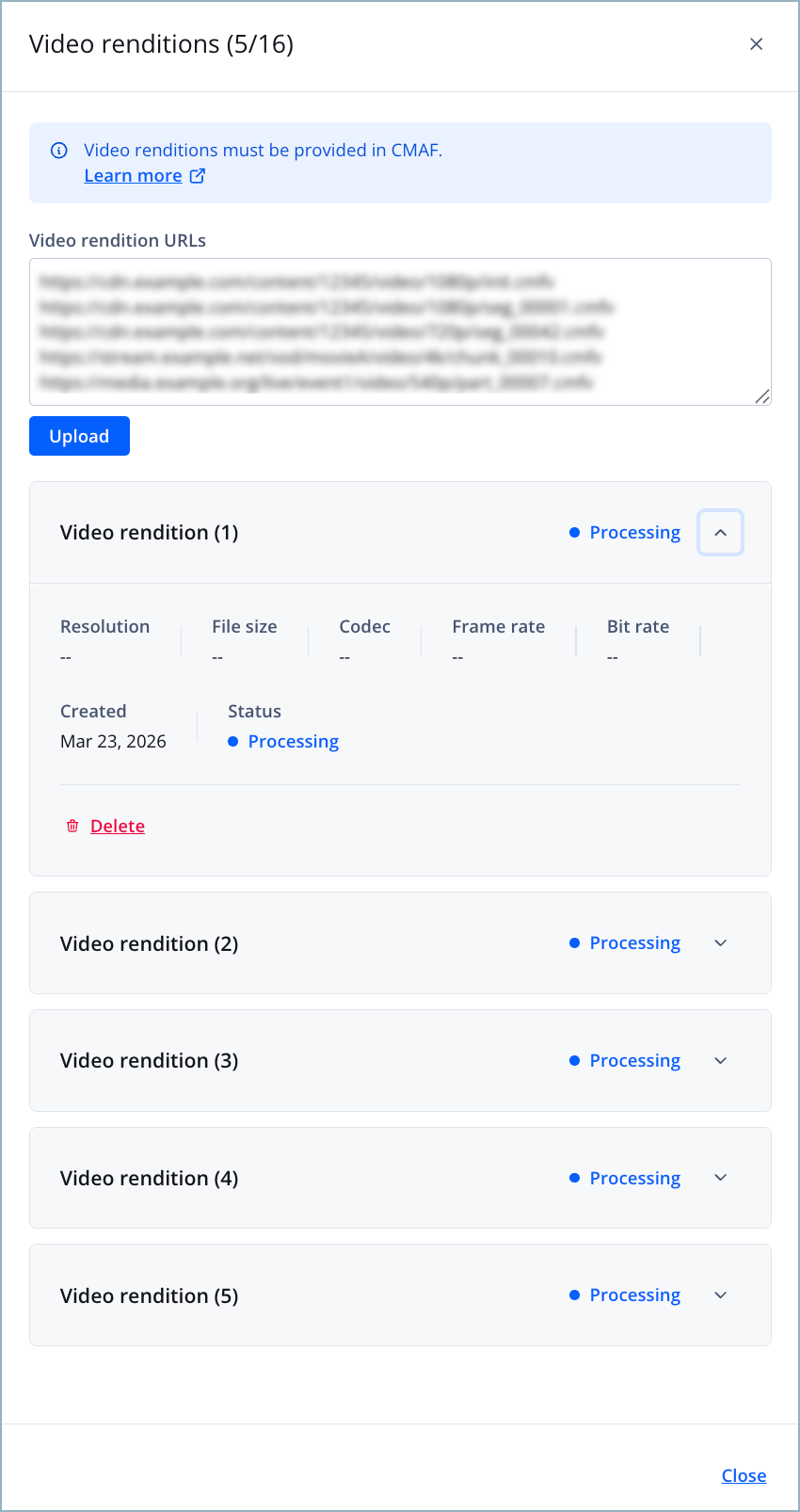
Video renditions panel
Follow these steps to upload a CMAF VOD video rendition:
-
In your Media library, click the name of a CMAF VOD media item. The media details page appears.
In the media library, you can identify these media items by looking for the CMAF VOD media category.
-
Below the preview player, click the Renditions tab.
-
In the Video row, click Manage. The Video renditions panel appears.
-
In the textbox, enter a list of
.cmfvrendition URLs, with one URL per line.You can upload a maximum of 16 video renditions per media item.
-
Click Upload. A rendition tile appears in the panel below for each uploaded rendition.
Select metadata from your
.cmfvfile will be applied to the video rendition. Unlike audio and text renditions, you cannot assign additional metadata to video renditions. -
Click Close. The Video renditions panel closes.
Once uploaded, your renditions are automatically packaged into DASH and HLS manifests for streaming through the JW Platform.
Upload an audio rendition
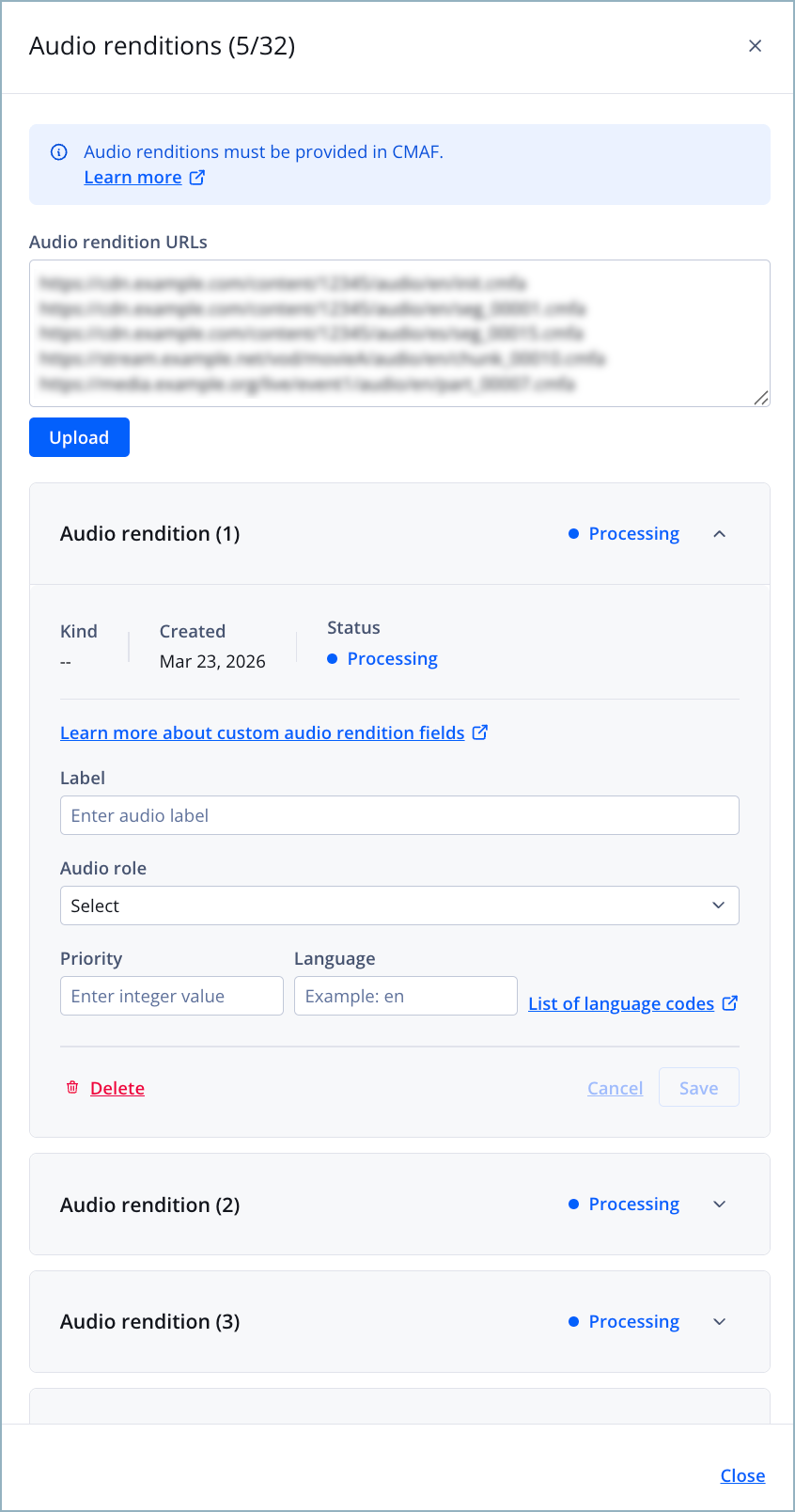
Audio renditions panel
Follow these steps to upload a CMAF VOD audio rendition:
-
In your Media library, click the name of a CMAF VOD media item. The media details page appears.
In the media library, you can identify these media items by looking for the CMAF VOD media category.
-
Below the preview player, click the Renditions tab.
-
In the Audio row, click Manage. The Audio renditions panel appears.
-
In the textbox, enter a list of
.cmfarendition URLs, with one URL per line.You can upload a maximum of 32 audio renditions per media item.
-
Click Upload. A rendition tile appears in the panel below for each uploaded rendition.
-
Click the rendition tile to expand the rendition settings.
-
Enter a Label for the rendition.
This is the label that the viewer sees when selecting a rendition in the player.
-
Select an Audio role from the dropdown menu.
The audio role identifies the function of the track in the media, as defined by the role scheme in CTA-5005-A.
See role definitions
Role Definition Alternate Alternate version of the main content Commentary Audio track containing director or expert commentary Description Audio describing visual elements for accessibility Dub Audio translated into a different language Main Primary content for default playback Supplementary Additional content that complements a different media type
-
Enter an integer to assign the rendition’s Priority.
Tracks with lower values appear higher in the player’s track list. The exact order may still vary depending on the player implementation.
-
Enter a two-letter ISO Language code.
-
Click Save.
-
Click Close. The Audio renditions panel closes.
Once uploaded, your renditions are automatically packaged into DASH and HLS manifests for streaming through the JW Platform.
Upload a text rendition
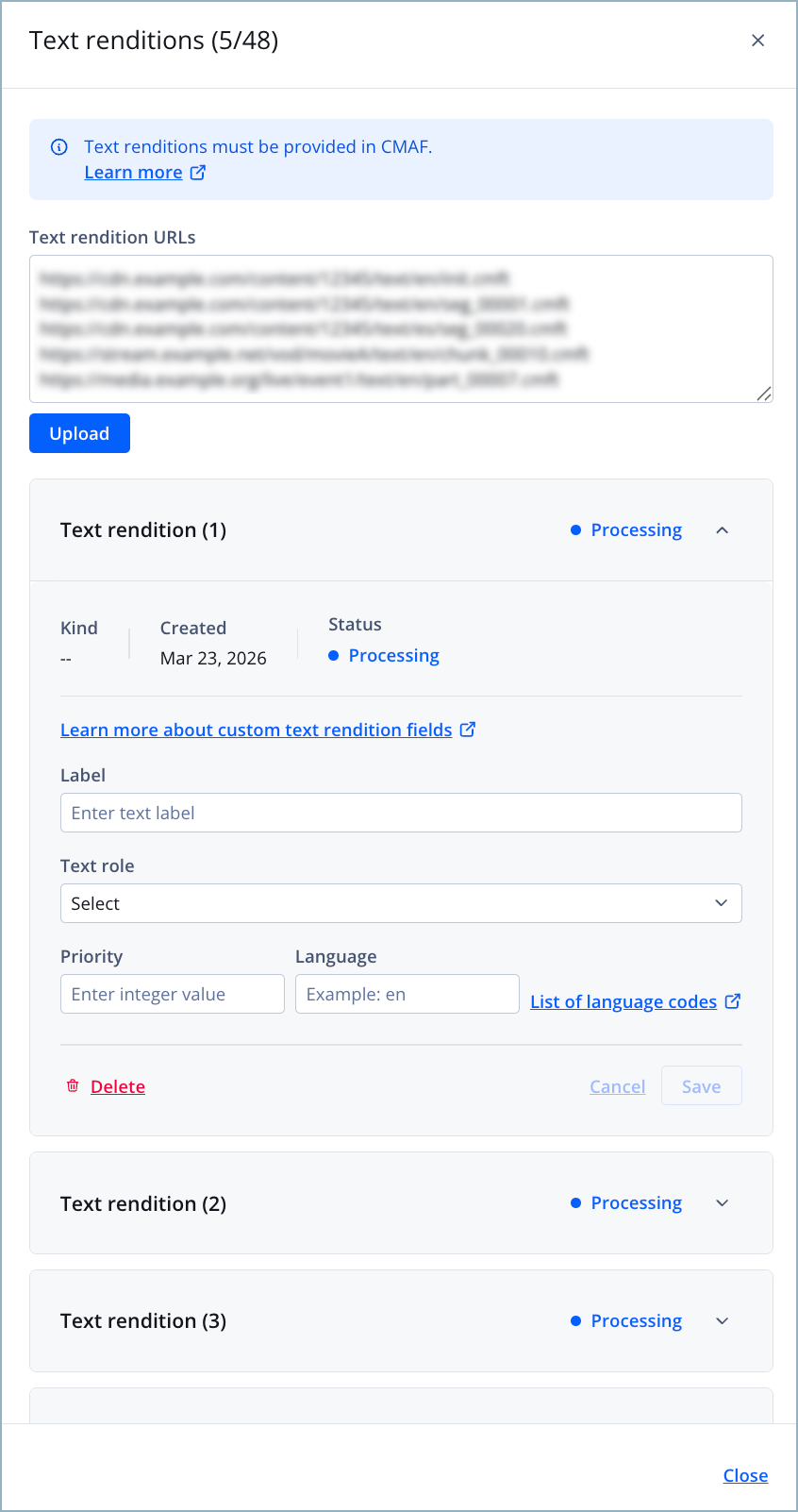
Text renditions panel
Follow these steps to upload a CMAF VOD text rendition:
-
In your Media library, click the name of a CMAF VOD media item. The media details page appears.
In the media library, you can identify these media items by looking for the CMAF VOD media category.
-
Below the preview player, click the Renditions tab.
-
In the Text row, click Manage. The Text renditions panel appears.
-
In the textbox, enter a list of
.cmftrendition URLs, with one URL per line.You can upload a maximum of 48 audio renditions per media item.
-
Click Upload. A rendition tile appears in the panel below for each uploaded rendition.
-
Click the rendition tile to expand the rendition settings.
-
Enter a Label for the rendition.
This is the label that the viewer sees when selecting a rendition in the player.
-
Select an Text role from the dropdown menu.
The text role identifies the function of the track in the media, as defined by the role scheme in CTA-5005-A.
See role definitions
Role Definition Alternate Alternate version of the main content Caption Text display of dialogue and sounds for accessibility Description Text describing visual elements for accessibility Dub Text translated into a different language Main Primary content for default playback Metadata Information for application processing Subtitle Translation of dialogue into a different language Supplementary Additional content that complements a different media type
-
Enter an integer to assign the rendition’s Priority.
Tracks with lower values appear higher in the player’s track list. The exact order may still vary depending on the player implementation.
-
Enter a two-letter ISO Language code.
-
Click Save.
-
Click Close. The Text renditions panel closes.
Once uploaded, your renditions are automatically packaged into DASH and HLS manifests for streaming through the JW Platform.
FAQs
What should I do if my upload fails?
If the JW Platform cannot process your uploaded rendition, it will return a Failed status. In this event, delete the failed rendition and upload it again.
What happens if my CMAF VOD renditions don’t align with my DRM policy?
CMAF VOD renditions must follow your property’s DRM rules. For example, if your policy limits resolution to 1280p, you need to upload at least one rendition at ≤1280p. If no renditions meet the policy, only audio will play, or playback will fail if no audio rendition exists.
Which features are not supported for CMAF VOD media in the beta stage?
Some features available for other media types are not yet supported for custom renditions. These may be added later based on demand.
The following features are not supported:
-
Automatic creation of static or motion thumbnails
CMAF VOD allows you to upload thumbnails manually.
-
Copying CMAF VOD media items to another property
-
Trimming of CMAF VOD media
-
Only in-manifest captions are supported (no sidecar captions or chapters)
-
Progressive MP4 playback
-
MRSS imports
Updated about 2 months ago