
Manage streaming custom reports
Learn how to schedule, download, edit, and delete streaming custom reports
After creating a streaming custom report, you can schedule, download, edit, or delete it.
Schedule a report
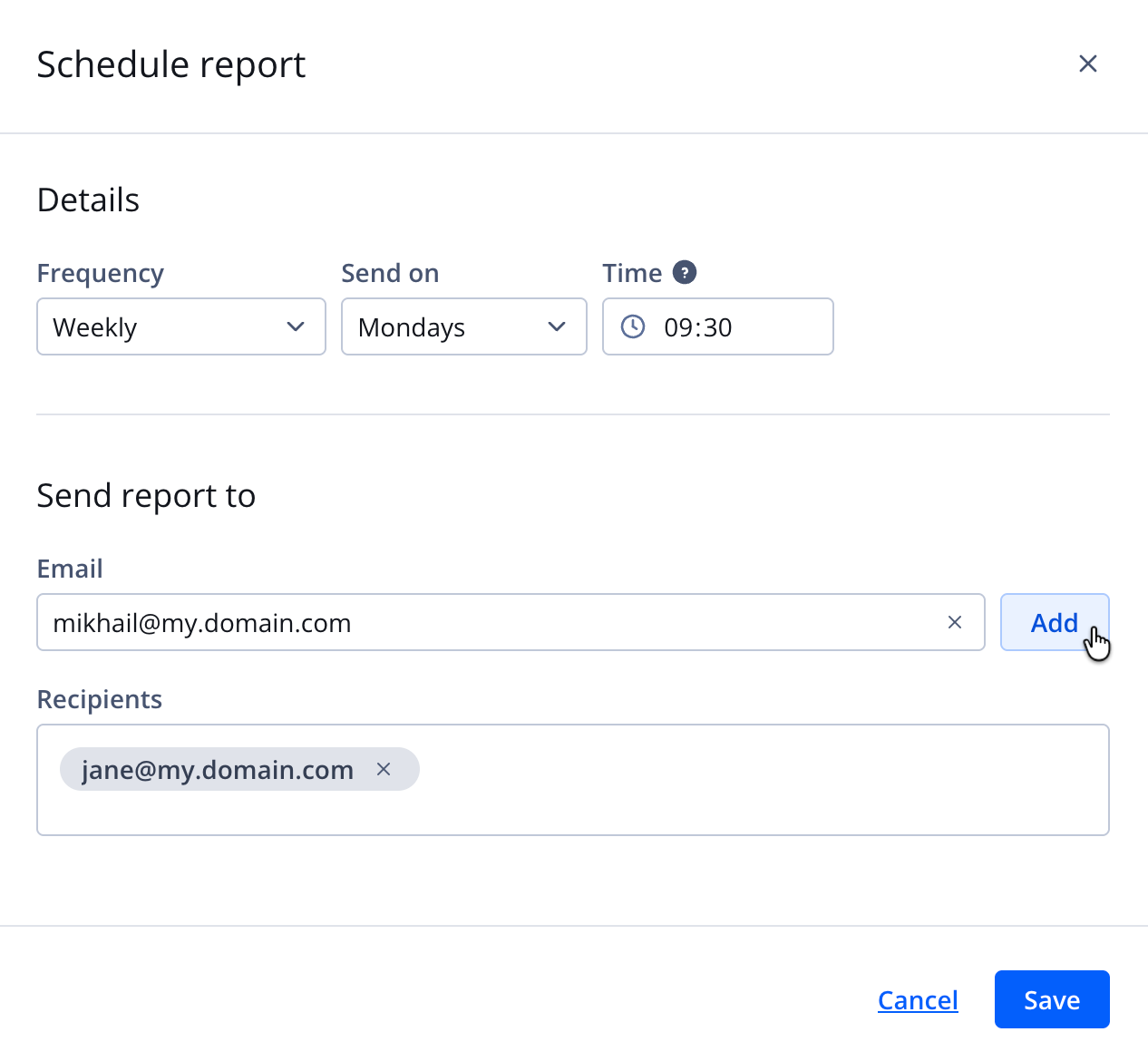
Schedule report panel
Create a schedule
Follow these steps to schedule a report:
- On the Custom reports page, on the Streaming tab, click the name of the report. The report opens.
- Click ⋯ > Create schedule. The Schedule report panel opens.
- Define the schedule frequency Details of the report.
Daily
Follow these steps to schedule the report to run daily:- From the Frequency dropdown menu, select Daily.
- Enter the Time in HH:MM, 24-hour format.
Weekly
Follow these steps to schedule the report to run weekly:- From the Frequency dropdown menu, select Weekly.
- From the Send on dropdown menu, select the day of the week.
- Enter the Time in HH:MM, 24-hour format.
Monthly
Follow these steps to schedule the report to run monthly:- From the Frequency dropdown menu, select Monthly.
- From the Send on dropdown menu, select the day of the month.
- Enter the Time in HH:MM, 24-hour format.
- (Optional) Choose the recipients who will receive the report:
- Enter a single Email address.
- Click Add. The recipient name appears under Recipients.
- Repeat steps 4i-ii to add multiple recipients.
- Click Save. The report is scheduled, and the panel closes.
Edit a schedule
Follow these steps to edit a schedule:
- On the Custom reports page, on the Streaming tab, click the name of the report. The report opens.
- Click ⋯ > Edit schedule. The Schedule report panel opens.
- Follow steps 3-5 of Create a schedule to finish editing the schedule settings.
Remove a schedule
Follow these steps to remove a schedule:
- On the Custom reports page, on the Streaming tab, click the name of the report. The report opens.
- Click ⋯ > Remove schedule.
Download a report
Follow these steps to download a report:
- On the Custom reports page, on the Streaming tab, click the name of the report. The report opens.
- Click ⋯ > Export as CSV.
- Save the .csv file to your device.
Edit a report
Follow these steps to edit a report:
-
On the Custom reports page, on the Streaming tab, click the name of the report. The report opens.
-
Under the Streaming Analytics column, on the All Fields tab, select one or more DIMENSIONS or MEASURES. The fields will appear in the main pane.
Follow these steps to learn about a specific dimension or metric:
- Hover over the dimension or metric.
- Click ⓘ (information icon). A pop-up window appears defining the value.
-
(Optional) In the main pane, expand the Filters section to filter or limit data for the report.
-
(Optional) Define a visualization or graph.
-
Click Run to generate the report results.
-
Click Save. The changes to the report will be saved.
Delete a streaming custom report
Deleting a report from your account is irreversible.
You can remove reports individually or in bulk:
- Single report: Delete one report directly from the report list
- Multiple reports: Select and delete several reports at the same time
Single report
Follow these steps to delete a report:
- On the Custom reports page, on the Streaming tab, click ⋯ > Delete in the row of a report. The Delete report pop-up window opens.
- Click Delete. The report is deleted and removed from the report list.
Multiple reports
Follow these steps to delete multiple reports:
- On the Custom reports page, click the checkbox in the rows of multiple reports.
- Click Delete. All selected reports are deleted.
FAQs
Device Type
What is the AppleCoreMedia browser?
The AppleCoreMedia browser is the player used in apps within the Apple ecosystem.
| Browser | Device Type | OS | Description |
|---|---|---|---|
| AppleCoreMedia | TV | tvOS | App on an Apple TV |
| AppleCoreMedia | Phone | iOS | App on an iPhone |
| AppleCoreMedia | Tablet | iPadOS | App on an iPad |
Minutes Delivered
What are minutes delivered?
Minutes delivered refers to the total video content retrieved on a viewer's device from the JWX servers. It is a measure of the video segments streamed and downloaded by the player.
Key points:
- Minutes delivered is near-100% accurate in calculating total streamed minutes for a piece of content over a period.
- This metric can exceed content duration if viewers rewind or rewatch portions of a video.
- This metric may not perfectly reflect watch time due to buffering, connectivity issues, or background and shared playback.
- For long-form content, minutes delievered provides a good approximation of total engagement.
What are unique minuted delivered?
Unique minuted delivered refers to unique minutes streamed within a play session.
A rewind does not result in higher unique minutes delivered. This metric cannot exceed the duration of the video nor the length of the play session. Unique minutes delivered helps track the percentage of viewers who watch to a certain point of the video.
Why are minutes delivered helpful to broadcasters?
Minutes delivered provides an accurate measure of the total viewing time across all viewers for a given piece of content. It allows broadcasters to track engagement metrics like video completion rates (percentage of viewers watching 25%, 50%, 75%, or the entire video). While not a perfect proxy for watch time, minutes delivered serves a good approximation, particularly for long-form content.
What methodology is used to determine minutes delivered?
When a video is played, the video player retrieves it in small segments from JWX servers. Each retrieval of a segment is recorded, with the segment length contributing to the total minutes delivered count. This allows JWX to accurately track the total minutes of video streamed and downloaded across all viewers, which approximates the total watch-time.
User ID
Why is the User ID missing in the streaming metrics?
The User ID is sourced from the external identity management system and must be incorporated by the application. You must configure user tracking in your app to view the User ID.
Why is the User ID missing in certain dataset rows?
The User ID may not appear when the following events occur:
- The Viewer ID changes during playback. Each row represents minutes delivered to a particular Viewer ID. The User ID is appended during the player's first call to JWX servers. Subsequent calls with a different Viewer ID cannot be linked to the same User ID.
- Playback crosses the UTC day boundary. Play logs are processed daily. A new row is created for each new day of the play. The User ID is only appended during the player's first call to JWX servers.
Viewer ID
How stable is the Viewer ID?
JWX creates the Viewer ID based upon the IP address and user agent of the viewer.
Both the IP address and user agent change over time. Most playback devices receive a Viewer ID within two days due to IP address changes and device updates.
Is the Viewer ID the same as in player and OTT metrics?
| Metrics | Explanation |
|---|---|
| Web Player | Yes, the Viewer ID of a web play session is identical to the Viewer ID of server-side play sessions. |
| OTT | No, the Viewer ID of OTT play sessions is not the same as the Viewer ID of server-side play sessions. |
Updated about 1 month ago