
Manage a transformation ᴮᴱᵀᴬ
Learn how to manage a transformation output
This is a beta offering. You can request access to this beta feature through your JWX representative.
By using this documentation, you are agreeing to abide by the terms of the JWP Beta Program Agreement.

Once a transformation is generated in a project, you can manage it from the Transformations section of the project settings page.
From this section, you can:
- Review a transformation preview and publish it
- Edit a generated transcript and regenerate its audio before publishing
- Edit metadata for the generated transformation media
- Archive a transformation that should no longer be available
Review and publish a transformation
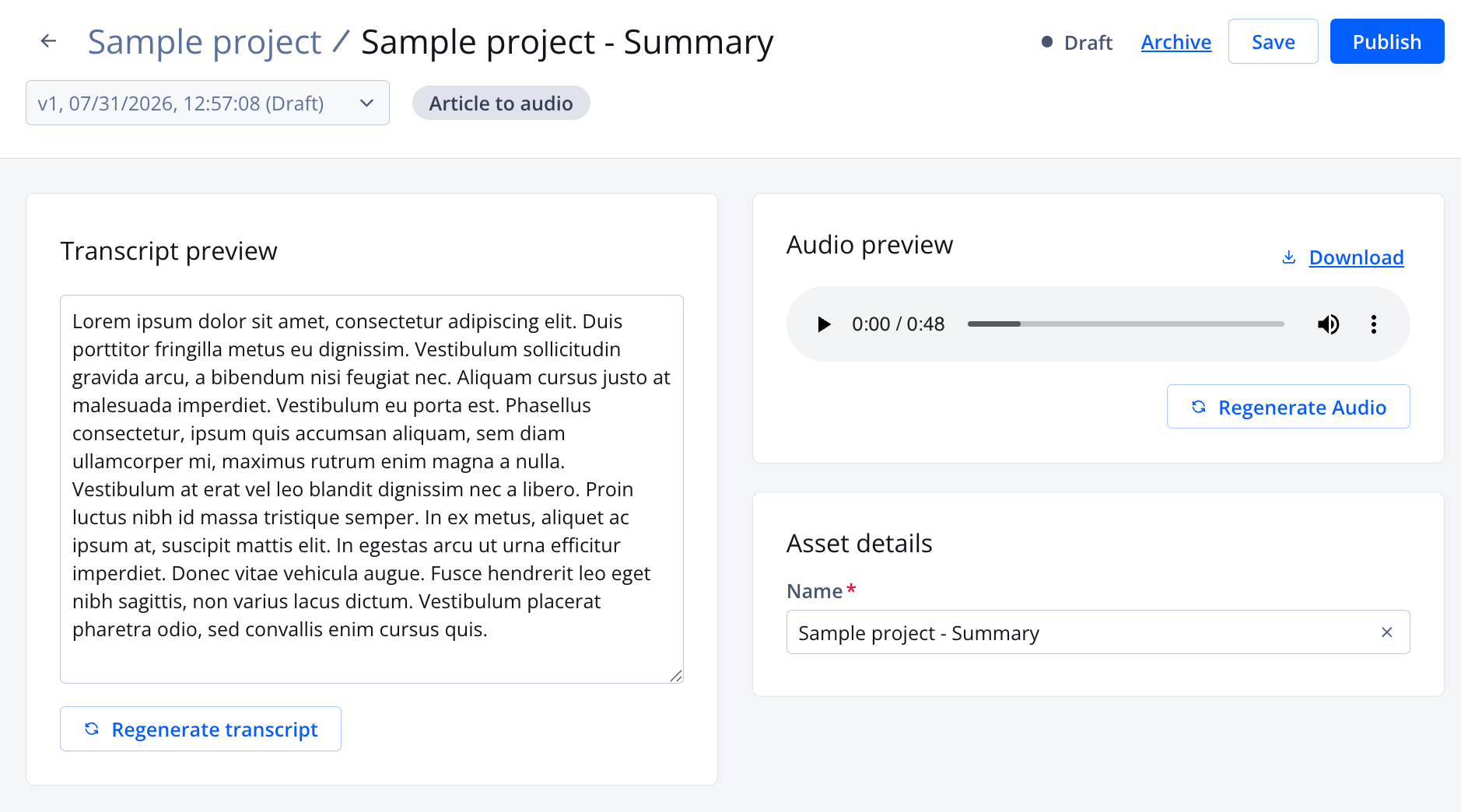
A project transformation page
Follow these steps to review and publish a transformation:
- On the Studio page, in the Projects section, click the name of a project. The project settings page appears.
- Under Transformations, in the row of a transformation, click ⋯ > Review. The transformation page appears.
- Under Audio Preview, click ▶ (play icon) to listen to the transformation.
- (Optional) If the transcript or audio requires changes, manually edit or regenerate the transcript and regenerate the audio.
- Click Publish.
Edit a transcript and regenerate audio
Before publishing an Article to Audio, Text to Audio, or Article to Podcast transformation, you can manually edit its generated transcript. For transformations created with a non-verbatim agent, you can also regenerate the transcript with additional instructions.
Changes to the project source are not applied to an existing transformation. To process updated source content, create a new transformation.
After a transformation is published, its transcript and generated audio cannot be edited or regenerated. To make corrections, archive the published transformation and start a new transformation workflow.
Follow these steps to edit or regenerate a transcript and regenerate its audio:
- Under Transcript preview, update the transcript using one of the following methods:
Manual update
- To edit the transcript manually, modify the transcript text.
- Click Save.
Regenerate the transcript
This method does not apply to verbatim agents.- Click Regenerate transcript.
- Click Save .
- Under Audio preview, click Regenerate Audio. JWX Studio generates audio from the current transcript.
- Click ▶ (play icon) to review the audio.
- (Optional) Repeat steps 1–3 to improve the audio.
⤴️ Return to step 5 of the main process.
Edit transformation media metadata
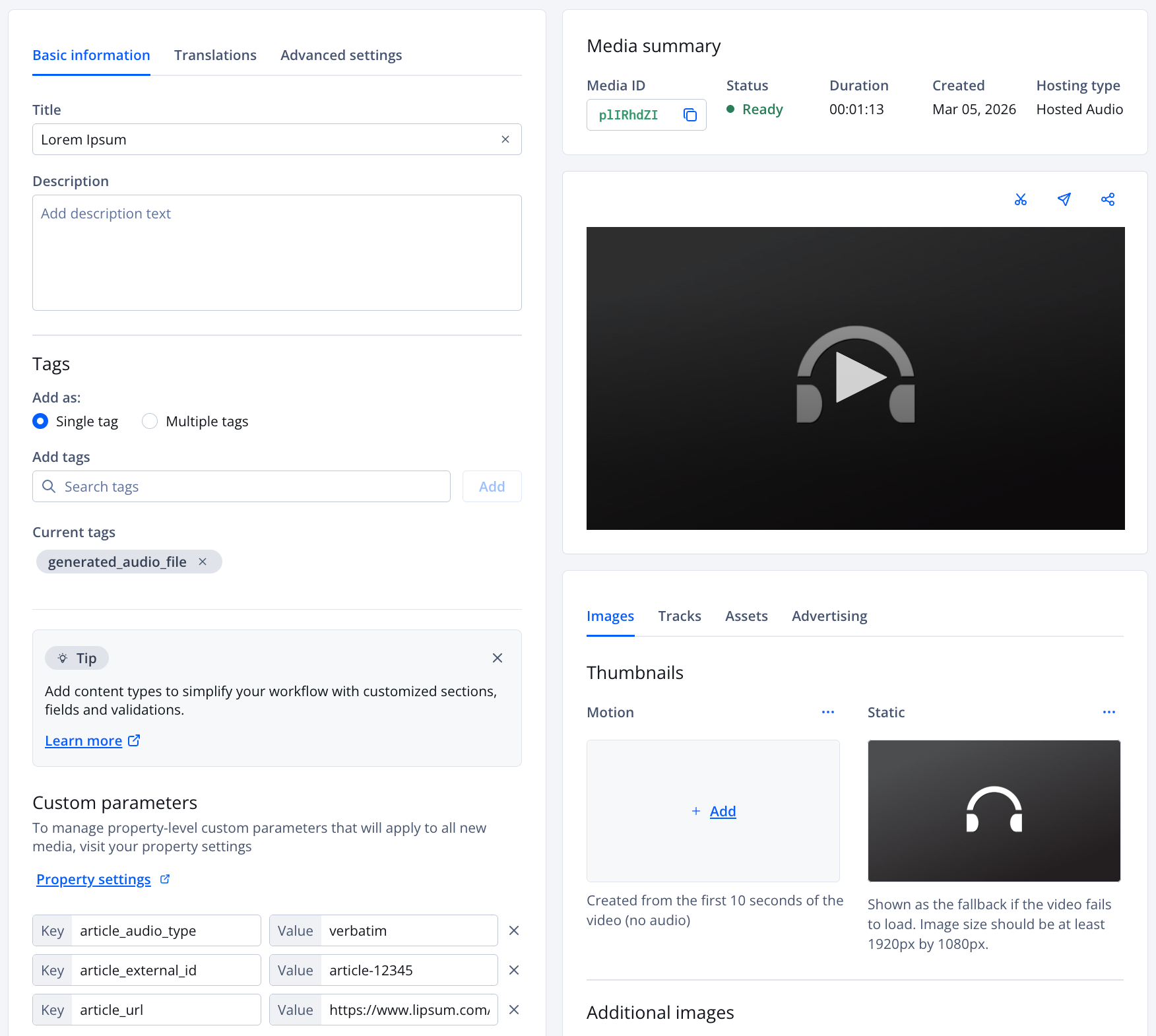
Media details page for a transformation
Follow these steps to edit the metadata for a transformation media (output):
-
On the Studio page, in the Projects section, click the name of a project. The project settings page appears.
-
Under Transformations, in the row of a transformation, click ⋯ > View media. The media details page for the transformation appears.
-
Edit the metadata.
Do not delete or edit any existing Custom parameters. However, you can associate additional custom parameters.
-
Click Save.
Archive a transformation asset
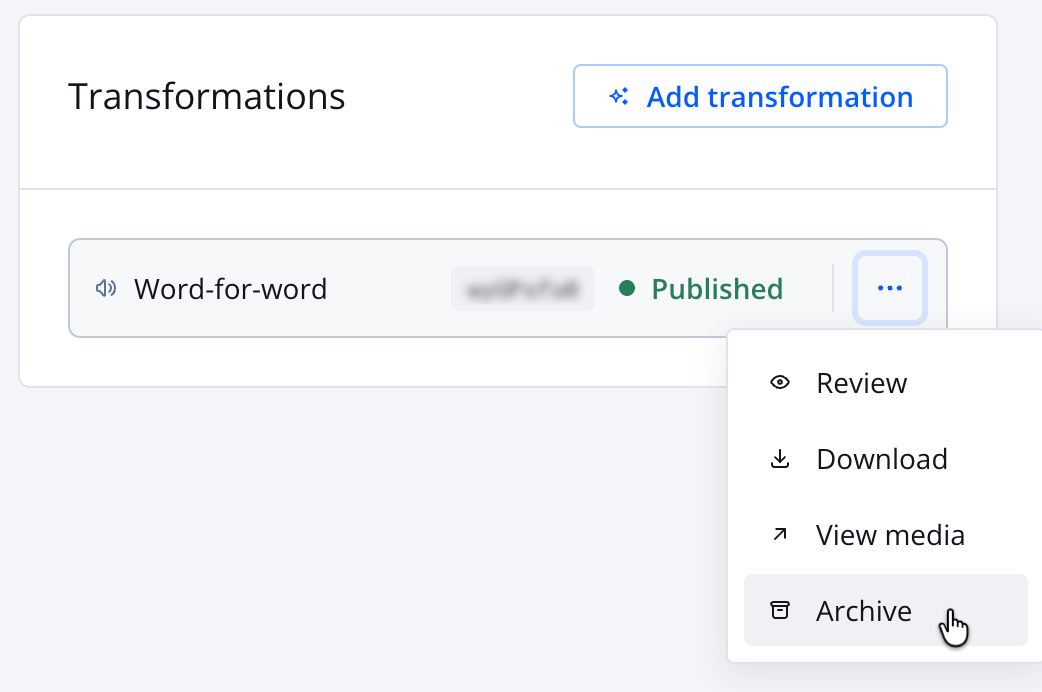
Archive option in the Transformations section
Follow these steps to disable a transformation:
- On the Studio page, in the Projects section, click the name of a project. The project settings page appears.
- Under Transformations, in the row of a transformation, click ⋯ > Archive.
If you are listening to an Preview of a published transformation, you can click Disable on the transformation page.
Updated about 1 month ago