
Create CMAF VOD media
Learn how to use the CMAF VOD workflow in the JWX dashboard
JWX can automatically transcode a source file into a complete CMAF VOD rendition ladder.
A CMAF VOD media item moves through the following states as its renditions are created or uploaded:
- Processing — JWX is creating or uploading the media item's renditions.
- Ready — At least one video or audio rendition has been successfully created or uploaded.
When the media item reaches the Ready state, you can stream it through the media or playlist endpoints in the Delivery API. For non-DRM media, you can also retrieve HLS or DASH manifests from the Assets tab.
Changes may take up to 15 minutes to appear in playback or the manifest because of caching.
Prerequisites
| Item | Description |
|---|---|
| Transcoding config | Default config used to transcode CMAF VOD uploads across a property Contact your JWX representative to customize a transcoding config to your streaming requirements. You can create multiple configs per property and apply different transcoding configs per media. |
| CMAF VOD as default upload workflow | (Optional) Property-level setting that preselects CMAF VOD for each new dashboard upload This setting does not apply to Management API uploads. API users must specify the workflow in each request. The property default does not limit the options available during an upload. For each dashboard upload, you can select Traditional VOD or CMAF VOD. If you select CMAF VOD and the property has multiple transcoding configs, you can also select the config for that upload. Follow these steps to set CMAF VOD as the default:
Changing the default only applies to new media uploads. Currently uploading or existing media are unaffected. |
Create a CMAF VOD media item
If you are a developer or have developer resources, you can use the Management API to create a CMAF VOD media item.
- To transcode a source file using CMAF VOD, set
hosting_typetorenditionsand provide the source using a supported upload method. JWX automatically generates the renditions defined by the selected transcoding config.- To bring your own renditions, create the media item with
hosting_typeset torenditions, then use the custom rendition endpoints to upload each pre-encoded video, audio, or text rendition.
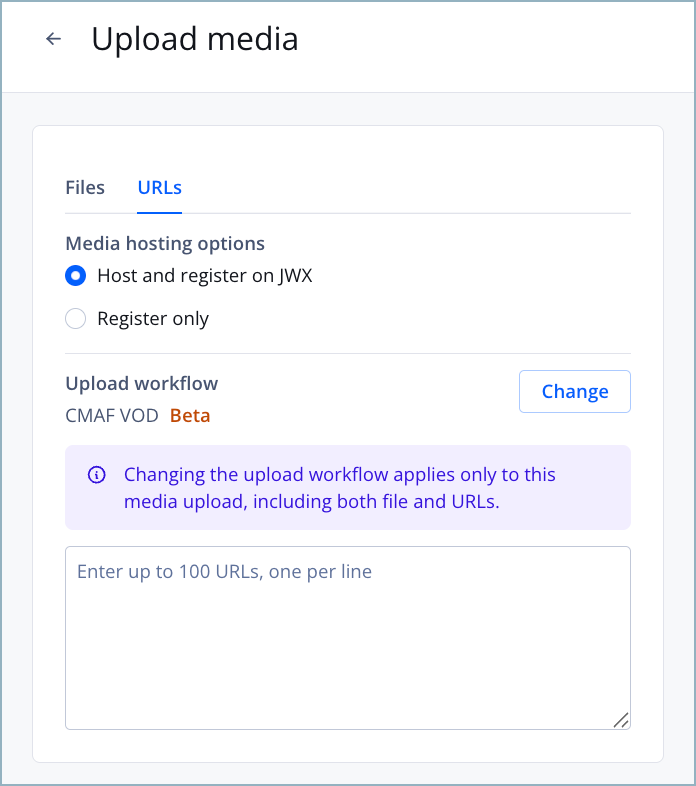
Creating a CMAF VOD media item
Follow these steps to create a CMAF VOD media item:
-
From the Media library, click Upload media. The Upload media page appears.
Below Upload workflow, confirm that CMAF VOD is selected. If not, click Change > CMAF VOD > Save.
-
Select media to upload. You may use either or both of the options below.
Option Description Files Media file prepared for upload
Uploading a media file to the JWX Platform automatically hosts and registers the media item.
Follow this step to select one or more files:- On the Files tab, drag and drop a file from your computer onto the page. Alternatively, click select a file, and choose a video from your computer file list. The selected media files appear in the list view.
URLs Media URL prepared for upload
Follow these steps to enter one or more URLs:- On the URLs tab, enter a list of media URLs, with one URL per line. You can add a maximum of 100 URLs at a time.
- Under Media hosting option, click Host and register on JWX. This uploads and registers the media to your account. You can share, edit (including video length, captions, metadata), recommend, monetize, and analyze the media.
-
(Optional) If your property has multiple Transcoding configs, select one from the dropdown menu. If you do not select a config, JWX uses the property default.
-
(Optional) Add metadata and content protection to the upload (steps 4-8).
-
Click Upload. The Upload media page closes, and the inline Uploading media items panel appears. This panel allows you to continue navigating the dashboard, track upload progress, and cancel your uploads.
Once uploaded, JWX automatically creates a full rendition ladder for the media item using the specifications set in your transcoding config. If needed, you can use the custom renditions endpoints to add individual renditions programmatically.
FAQs
CMAF VOD
Can I upload a media item using Traditional VOD when CMAF VOD is my property default?
Yes. The JWX dashboard allows you to override your site’s default upload workflow at the media level. When applied, this setting prevents the uploaded media item from undergoing CMAF VOD transcoding. It does not alter the site-level default upload workflow.
Follow these steps to change the upload workflow:
- Begin the CMAF VOD upload (steps 1-2).
- Under Upload workflow, click Change. The Upload workflow panel appears.
- Select Traditional VOD.
- Click Save.
- Complete the upload using the Traditional VOD (steps 4-9).
What should I do if my upload fails?
If the JWX Platform cannot process your uploaded media, it will return a Failed status. In this event, delete the media item and initiate a new upload.
Which features are not supported for CMAF VOD media in the beta stage?
Some features available for other media types are not yet supported for CMAF VOD renditions.
The following features are not supported:
- Copying CMAF VOD media items to another property
- Trimming of CMAF VOD media
- Progressive MP4 playback
- MRSS imports
BYOR
What happens if my BYOR renditions don’t align with my DRM policy?
For BYOR, renditions must follow your property’s DRM rules. For example, if your policy limits resolution to 1280p, you need to upload at least one rendition at ≤1280p. If no renditions meet the policy, only audio will play, or playback will fail if no audio rendition exists.
Updated about 2 hours ago