
Create and manage key value pairs (KVPs)
Create, register, and manage the keys used in your Strategy Rules configurations
Strategy Rules use keys to pass session data and shape the viewer experience. Create each key once, then reference it throughout your setup.
After a key is used in a configuration, it cannot be edited or deleted.
When configuring a Strategy Rule, all available keys appear in a grouped dropdown menu.
JWX supports two types of keys.
| Type | Description |
|---|---|
| Custom | Property-specific, customer keys whose values are defined at runtime These keys can be edited and deleted until they are first used in a configuration. Custom keys do not hold default values in the JWX dashboard. Values are supplied at runtime via For more information, learn how to provide custom data to a placement. |
| JWX defined | Future releases may use read-only keys defined by JWX and JWX partners |
Prerequisite
| Item | Description |
|---|---|
| User role | Admin or Manager user role in the JWX dashboard |
Create a custom key
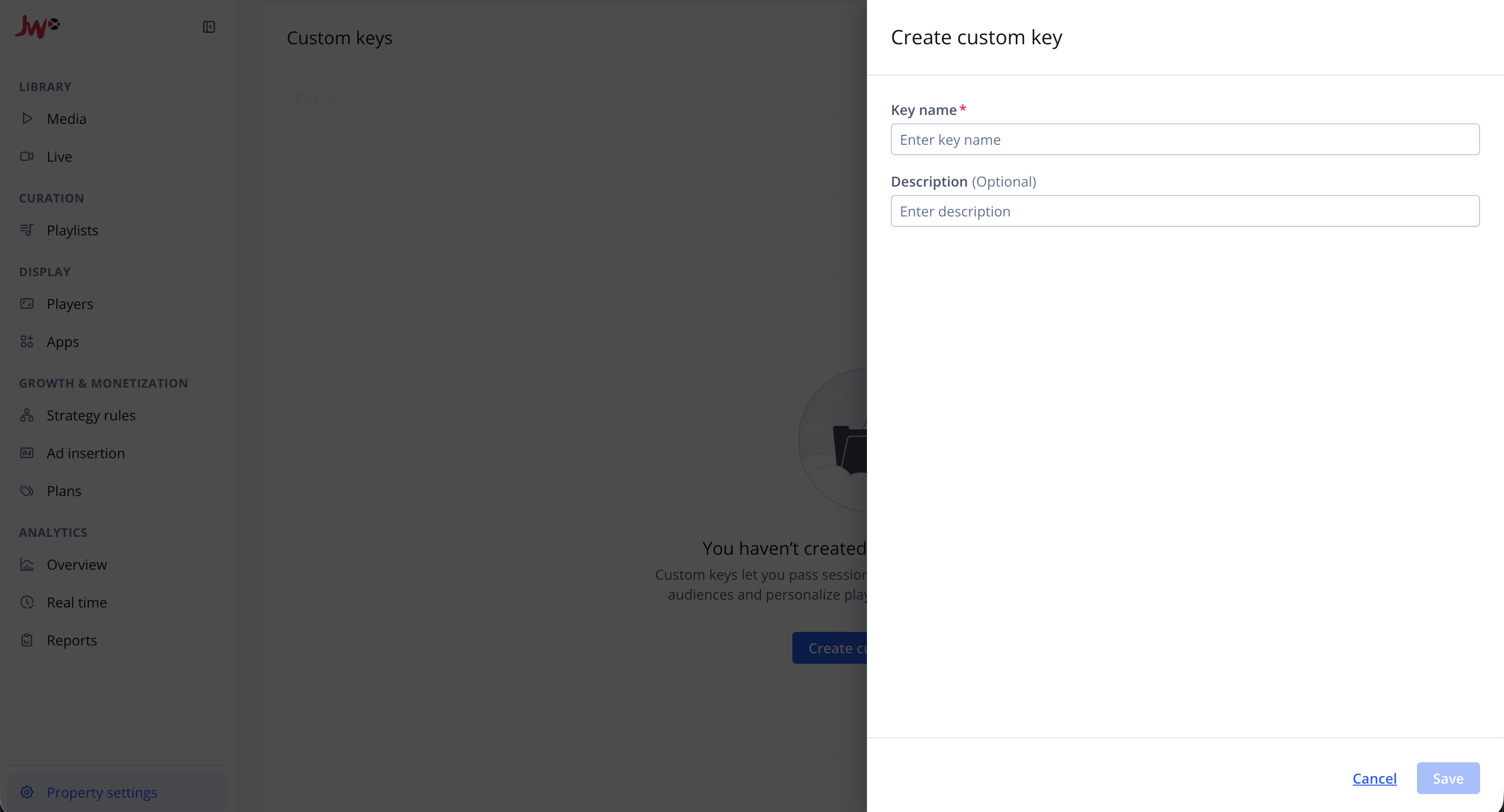
Create custom key panel
Follow these steps to create a custom key:
- On the Properties page, click the name of a property. The settings page for the property appears.
- Under Strategy rules, click Key value pairs (KVPs). The Key value pairs (KVPs) tab appears.
- Click Create custom key. The Create custom key panel opens.
- Define the key information.
| Field | Description |
|---|---|
| Key name | (Required) Identifier that IMPORTANT:
|
| Description | A note about the key's purpose |
- Click Save. The panel closes.
The key appears in the Custom keys list and can now be used in your property’s Strategy Rules configurations.
To use your key, see:
- Provide custom data to a placement
- Set a media item via a key-value pair
- Set an ad tag via a key-value pair
Edit a custom key
Once a key has been used in a configuration, it cannot be edited or deleted.
Follow these steps:
- On the Key value pairs (KVPs) page, in the Custom keys list, in the row of the key you want to edit, click ⋯ > Edit.
- Update the Key name or Description.
- Click Save.
Delete a custom key
Once a key has been used in a configuration, it cannot be edited or deleted.
Follow these steps:
- On the Key value pairs (KVPs) page, in the Custom keys list, in the row of the key you want to edit, click ⋯ > Delete.
- In the confirmation dialog, click Delete to confirm.
Updated about 2 months ago