
Create a web targeting rule
Web targeting rules let you define when and where ads render across websites. You can apply user, web, and content-based conditions to ensure ads reach the intended audience within the desired context.
Create a web rule
Follow these steps to create a targeting rule:
- On the Targeting rules page, click Create web rule. The web rule settings page appears.
- Define the user rules.
- Define the web rules.
- Define the content rules.
- Click Save.
User rules
The User rules tab allows you to define audience-based settings, such as location, device, operating system, and key-value pairs.
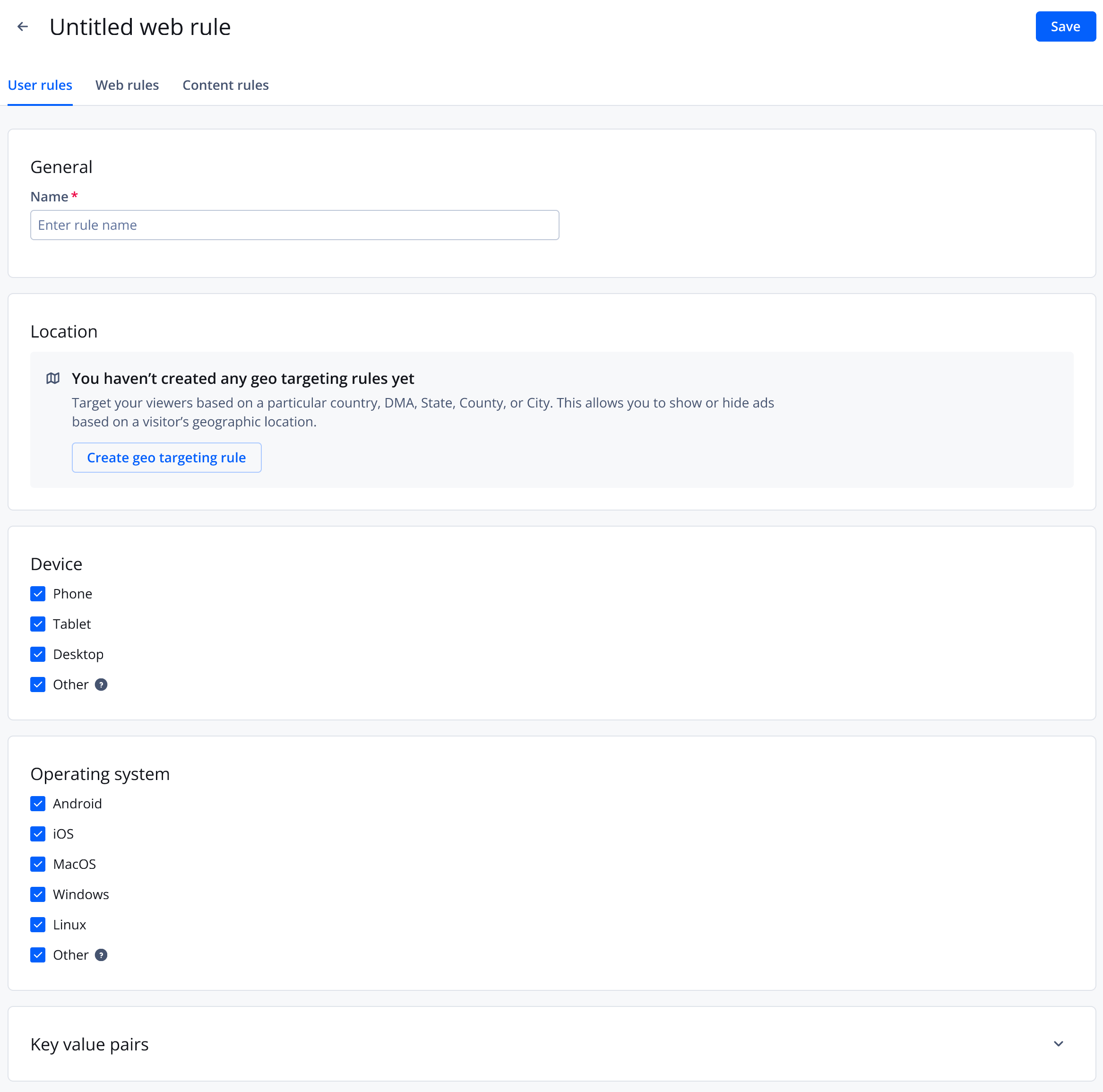
User rules tab
Follow these steps to define audience-based settings:
-
On the User rules tab, enter a Name.
-
(Optional) Define the Location:
-
Click Create geo rule. The Create geo targeting rule panel opens.
-
Define the geo rule:
Country
Setting Description Rule Instruction that determines whether a location is targeted or not
Possible options:- Include
- Exclude
Level Granularity of geographic targeting
Follow this step to select a level:- From the dropdown menu, select Country.
Country Specific geographic locations to target or exclude
Follow these steps to select one or more countries:- Search for a country.
- Click the checkbox next to one or more countries. The chosen countries appear under Added country.
DMA
Setting Description Rule Instruction that determines whether a location is targeted or not
Possible options:- Include
- Exclude
Level Granularity of geographic targeting
Follow this step to select a level:- From the dropdown menu, select DMA.
DMA Specific geographic locations to target or exclude
Follow these steps to define one or more DMAs:- Search for a DMA./li>
- Click the checkbox next to one or more DMAs. The chosen DMAs appear under Added dma.
State
Setting Description Rule Instruction that determines whether a location is targeted or not
Possible options:- Include
- Exclude
Level Granularity of geographic targeting
Follow this step to select a level:- From the dropdown menu, select State.
States Specific geographic locations to target or exclude
Follow these steps to select one or more states:- Search for a state.
- Click the checkbox next to one or more states. The chosen states appear under Added state.
County
Setting Description Rule Instruction that determines whether a location is targeted or not
Possible options:- Include
- Exclude
Level Granularity of geographic targeting
Follow this step to select a level:- From the dropdown menu, select County.
County Specific geographic locations to target or exclude
Follow these steps to select one or more counties:- Search for a county.
- Click the checkbox next to one or more counties. The chosen states appear under Added counties.
City
Setting Description Rule Instruction that determines whether a location is targeted or not
Possible options:- Include
- Exclude
Level Granularity of geographic targeting
Follow this step to select a level:- From the dropdown menu, select City.
Cities Specific geographic locations to target or exclude
Follow these steps to select one or more cities:- Search for a city.
- Click the checkbox next to one or more cities. The chosen cities appear under Added city.
United States ZIP code
Setting Description Rule Instruction that determines whether a location is targeted or not
Possible options:- Include
- Exclude
Level Granularity of geographic targeting
Follow this step to select a level:- From the dropdown menu, select United States ZIP code.
ZIP codes Specific geographic locations to target or exclude
Follow these steps to enter one or more ZIP codes:- Enter a comma-separated list of ZIP codes. You can enter up to 2,500 ZIP codes.
- Click Add. The chosen ZIP codes appear under Added zip codes.
-
Click Done. The panel closes. The web rule appears under Location.
-
(Optional) Refine a rule by excluding sublocations:
- In the row of a rule, click ⋯. The dropdown menu appears.
- Select a geo category. The Create geo targeting rule panel opens.
- From the DMAs, State, County, City, or ZIP code dropdown menu, select one or more locations to exclude.
- Click Done. The excluded locations appear under Location nested under the relevant rule as an Exclude row.
-
-
(Optional) Under Device, select one or more options.
-
(Optional) Under Operating system, select one or more options.
-
(Optional) Define Key value pairs to target.
All
(Default) Follow these steps to target all key value pairs:
- Expand the Key value pairs section.
- From the Rule dropdown menu select All.
Only
Follow these steps to target specific key value pairs:
- Expand the Key value pairs section.
- From the Rule dropdown menu select Only.
- Click + Add. A new row appears.
- Enter a Key and Value.
- Repeat steps iii-iv to add another key value pair.
Except for
Follow these steps to exclude specific key value pairs:
- Expand the Key value pairs section.
- From the Rule dropdown menu select Except for.
- Click + Add. A new row appears.
- Enter a Key and Value.
- Repeat steps iii-iv to add another key value pair.
Web rules
The Web rules tab allows you to define URL, browser, and player settings. The following table explains each setting.
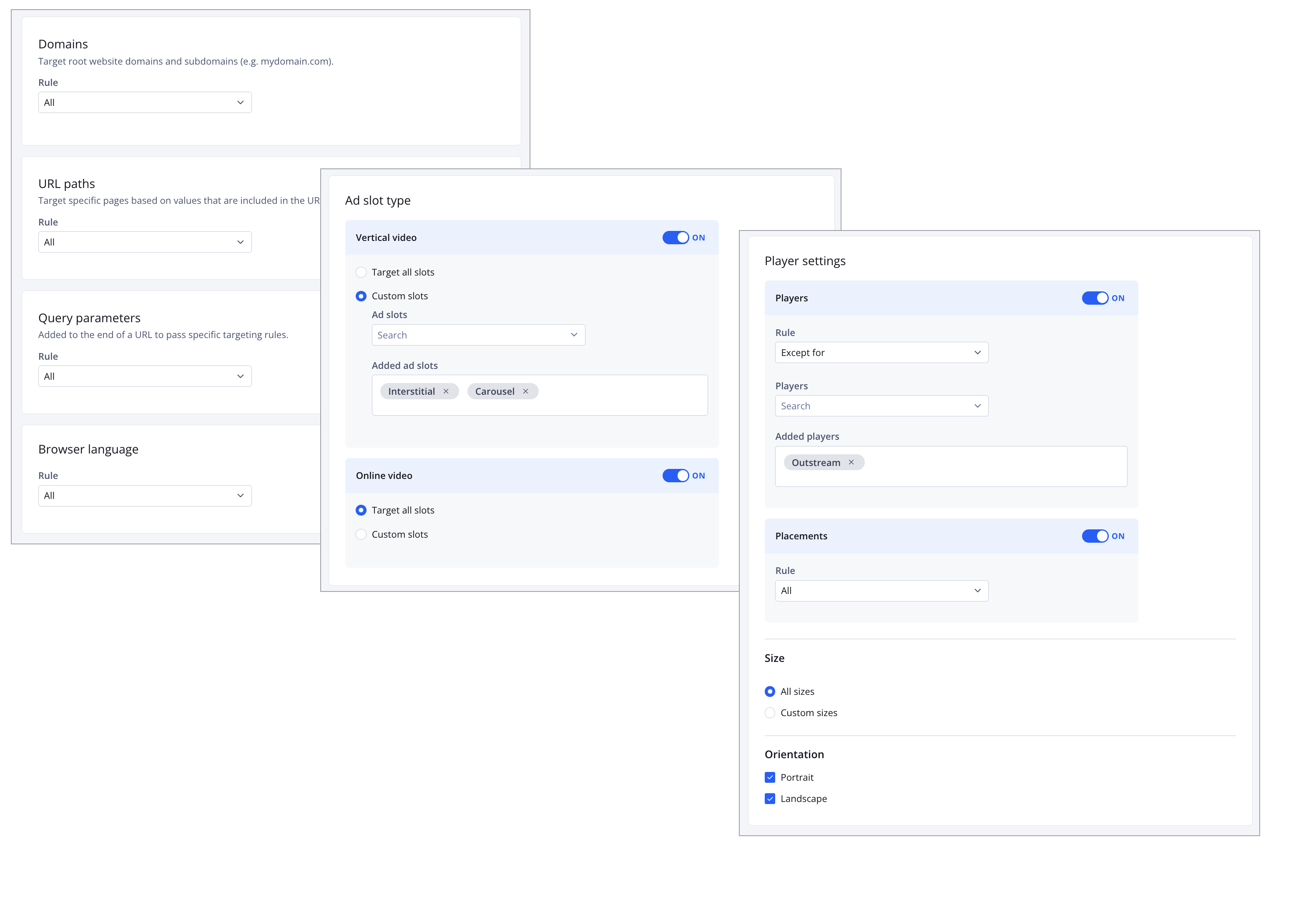
Web rules tab
| Setting | Description |
|---|---|
| Domains | Root website domains and subdomains to targetAll(Default) Follow this step to target all domains and subdomains:
OnlyFollow these steps to target specific domains and subdomains:
Except forFollow these steps to exclude specific domains and subdomains:
|
| URL paths | Specific pages to target based on values in the page URLAll(Default) Follow this step to target all pages:
OnlyFollow these steps to target specific pages:
Except forFollow these steps to exclude specific pages:
|
| Query parameters | Values in a URL query string used to target ads based on what viewers search on the websiteAll(Default) Follow this step to target all queries:
OnlyFollow these steps to target specific queries:
Except forFollow these steps to exclude specific queries:
|
| Browser language | Specific browser languages to targetAll(Default) Follow this step to target all browser languages:
OnlyFollow these steps to target specific browser languages:
Except forFollow these steps to exclude specific browser languages:
|
| Vertical video | Vertical Video ad slots to target Target all ad slots(Default) Follow these steps:
Target specific ad slotsFollow these steps:
Learn more about available Vertical Video ad slots. |
| Online video | Online Video ad slots to targetTarget all ad slots(Default) Follow these steps:
Target specific ad slotsFollow these steps:
|
| Players | Specific players to targetAll(Default) Follow this step to target all players:
OnlyFollow these steps to target specific players:
Except forFollow these steps to exclude specific players:
|
| Placements | Specific placements to targetAll(Default) Follow this step to target all placements:
OnlyFollow these steps to target specific placements:
Except forFollow these steps to exclude specific placements:
|
| Size | Specific player sizes to target, defined by a minimum, maximum, or rangeAll sizes(Default) Follow this step to target all player sizes:
Custom sizesFollow these steps to target specific player sizes:
|
| Orientation | Specific player orientations to target Possible options:
|
Content rules
The Content rules tab allows you to define content-based targeting, such as keywords, query parameters, language, media, and playlists. The following table explains each setting.
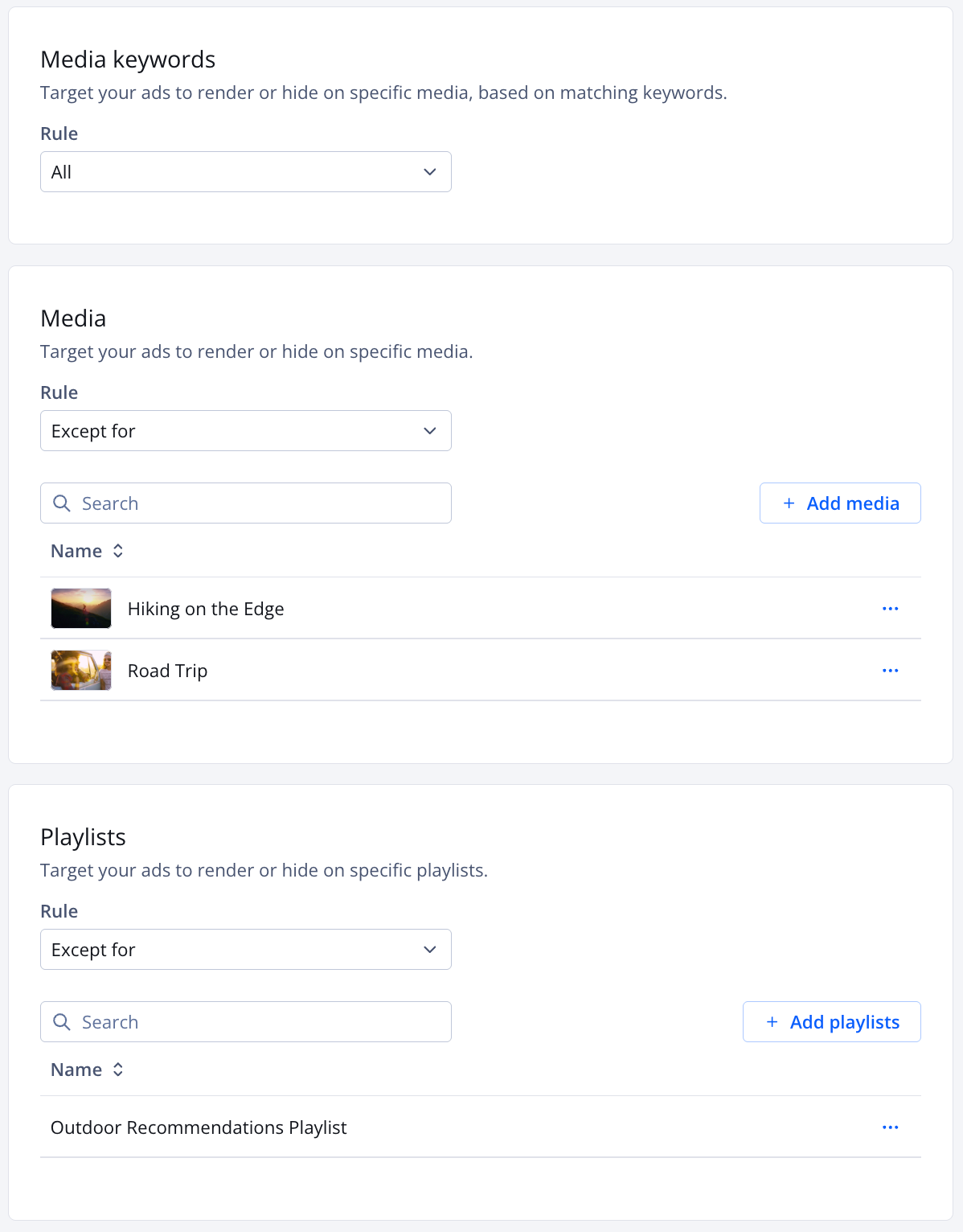
Content rules tab
| Setting | Description |
|---|---|
| Media keywords | Specific media to target based on matching keywords
All(Default) Follow this step to target all keywords:
OnlyFollow these steps to target specific keywords:
Except forFollow these steps to exclude specific keywords:
|
| Media | Specific media to target
All(Default) Follow this step to target all media:
OnlyFollow these steps to target specific media:
Except forFollow these steps to exclude specific media:
|
| Playlists | Specific playlists to target
All(Default) Follow this step to target all playlists:
OnlyFollow these steps to target specific playlists:
Except forFollow these steps to exclude specific playlists:
|

Updated 16 days ago