
Manage CMAF VOD renditions
Learn how to edit and delete renditions in a CMAF VOD media item from the JWX dashboard
The JWX Platform allows you to manage the renditions in your CMAF VOD media items. You can edit metadata or delete renditions to ensure you meet compliance standards and your viewers always experience the version of your content you intend.
Edit CMAF VOD rendition metadata
You can edit the metadata associated with your CMAF VOD audio renditions and captions. Video renditions take on the metadata from the original file and are not directly editable.
You can also use the captions editor to manage captions.
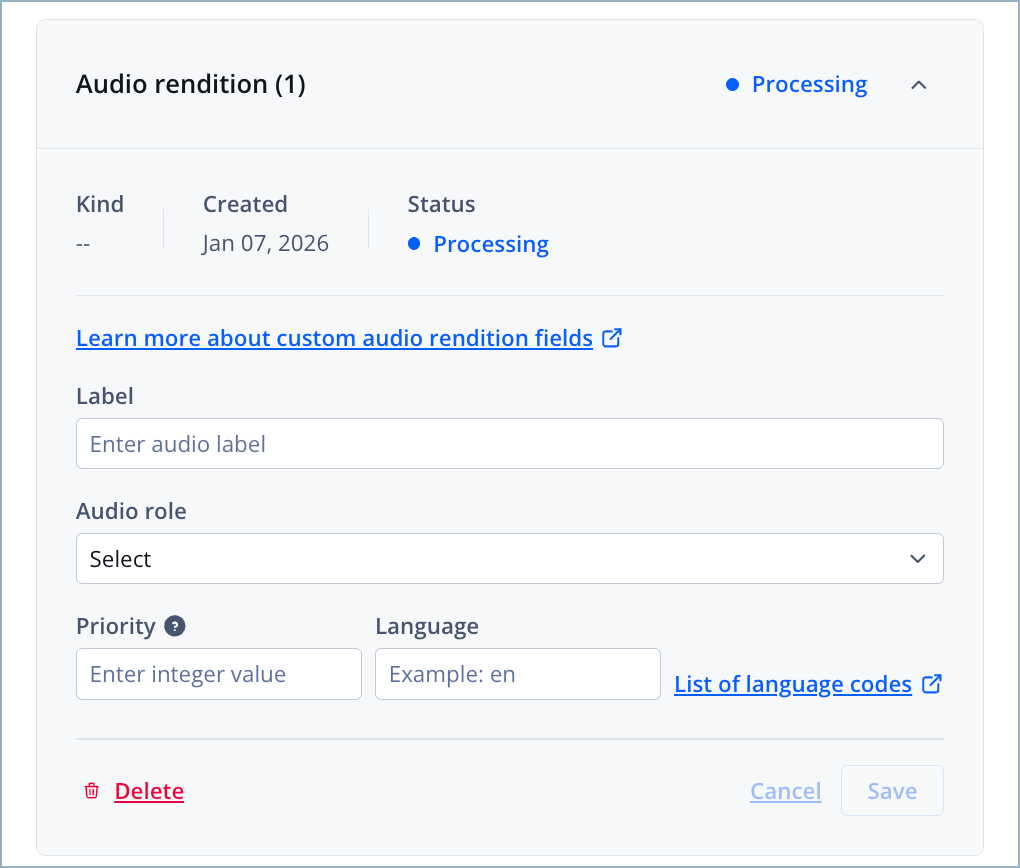
Audio rendition settings
Follow these steps to edit the metadata of a CMAF VOD audio rendition or caption track:
-
In your Media library, click the name of a CMAF VOD media item. The media details page appears.
-
Below the preview player, click the Assets tab. The Video, Audio, and Captions rows appear.
-
In the Audio or Captions row, click Manage. The Audio or Captions page appears.
-
In the row of a rendition or track, click ⋯ > Edit. The Edit panel appears.
-
Enter a Label or Name for the asset.
This is the label that the viewer sees when selecting a rendition in the player.
-
(Audio renditions only) Select an Audio role from the dropdown menu.
The role identifies the function of the track in the media, as defined by the role scheme in CTA-5005-A.
See audio role definitions
Role Definition Alternate Alternate version of the main content Commentary Audio track containing director or expert commentary Description Audio describing visual elements for accessibility Dub Audio translated into a different language Main Primary content for default playback Supplementary Additional content that complements a different media type
-
(Optional - audio renditions only) Enter an integer to assign the audio rendition’s Priority.
Audio renditions with lower values appear higher in the player’s audio list. The exact order may still vary depending on the player implementation.
-
Enter a Language.
-
Enter a two-letter ISO Language code.
-
Click Save. The edited settings are saved.
-
Click Close. The Audio or Captions panel closes.
Delete a CMAF VOD rendition
This action is irreversible. Deleting a CMAF VOD rendition removes it from the JWX system.
Follow these steps to delete a CMAF VOD rendition or track:
-
In your Media library, click the name of a CMAF VOD media item. The media details page appears.
-
Below the preview player, click the Assets tab. The Video, Audio, and Captions rows appear.
-
In the Video, Audio, or Captions row, click Manage. The Video renditions, Audio renditions, or Text renditions page appears.
-
In the row of a rendition, click ⋯ > Delete. The Delete warning appears.
-
Click Delete. The rendition or track is deleted.
Changes may take up to 15 minutes to appear in playback or the manifest because of caching.
Updated 20 days ago