
Manage a JWX Studio article feed ᴮᴱᵀᴬ
Review feed activity and update or remove a JWX Studio article feed
After creating a JWX Studio article feed, you may need to manage it:
- Pause or resume article ingestion
- Review projects created from a feed
- Inspect the source data
- Change the media outputs generated for new articles
- Remove a feed that is no longer needed
You can perform these tasks from the JWX Studio article feed settings.
Activate or deactivate article import

Feed settings page cards
You may want to pause article ingestion without deleting the feed or resume ingestion from a previously deactivated feed. The Article import toggle controls whether JWX Studio polls the feed and processes new articles.
Follow these steps:
- On the Properties page, click the name of a property. The property settings appear.
- Under Integrations, click Studio Article Feeds (RSS). The Studio article feeds tab opens.
- Click the name of a feed. The feed settings appear.
- Click the Article import toggle to ON to activate or to OFF to deactivate the feed.
- Click Save.
View a project created from the feed
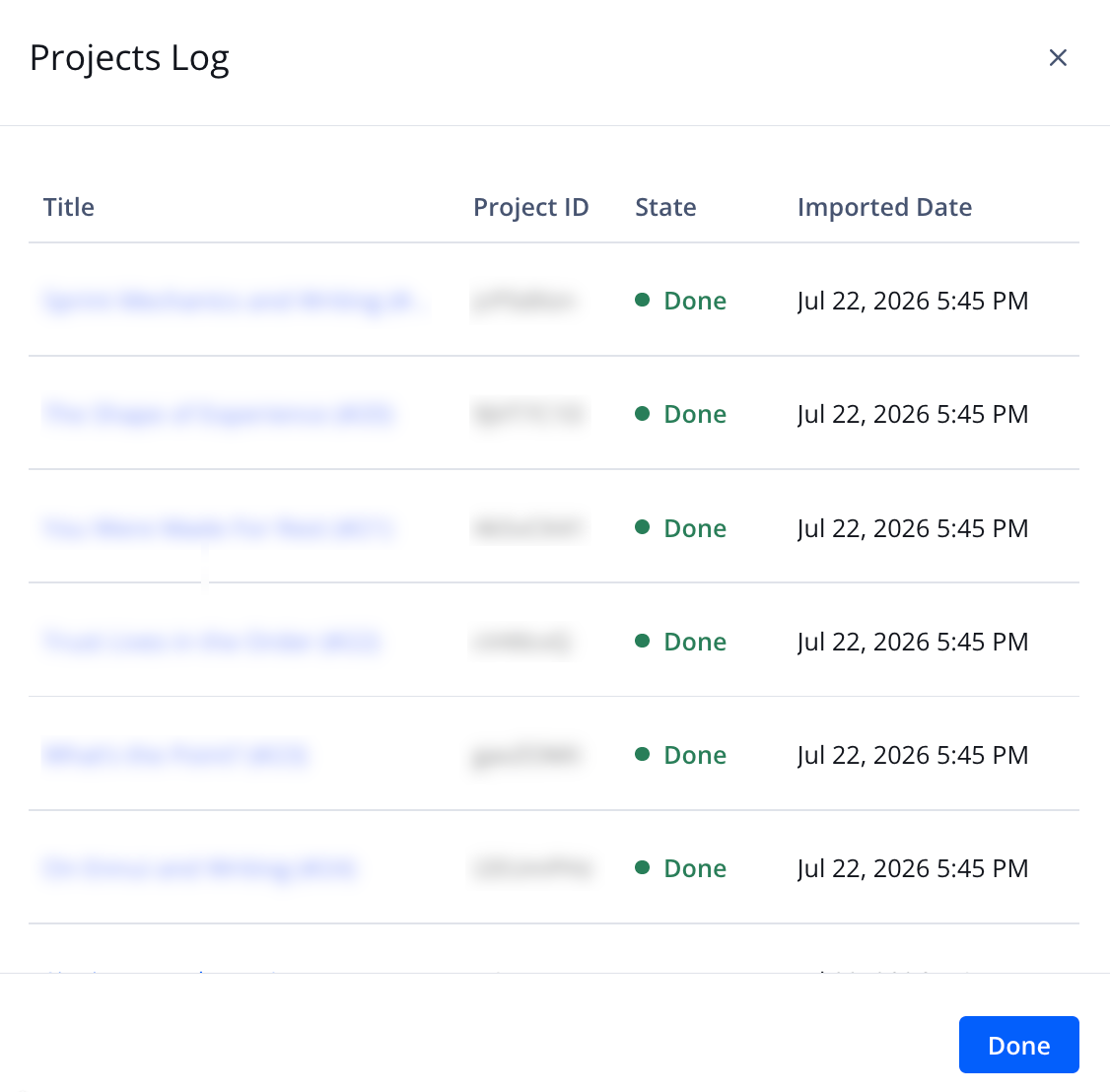
Projects Log panel
You may need to locate the project created for a specific article or check the state of its transformations. The Projects Log lists projects created from articles in the feed and shows each project’s state and import date. From the log, you can open the project in JWX Studio.
Follow these steps:
-
On the Properties page, click the name of a property. The property settings appear.
-
Under Integrations, click Studio Article Feeds (RSS). The Studio article feeds tab opens.
-
Click the name of a feed. The feed settings appear.
-
Under Status, click View projects. The Projects Log panel opens listing all projects created for articles in the RSS feed.
The panel displays the following information:
- Title: Title of the project
- Project ID: Unique identifier of the project
- State: Status of the project transformations
- Imported Date: Date the article was imported from the feed
-
Click the title of a project. The project opens in a separate browser tab.
-
On the feed tab, click Done to close the Projects Log panel.
View the article RSS feed XML
You may need to inspect the article data available from the feed. The raw XML shows the source content and metadata retrieved from the configured article RSS feed.
Follow these steps:
- On the Properties page, click the name of a property. The property settings appear.
- Under Integrations, click Studio Article Feeds (RSS). The Studio article feeds tab opens.
- Click the name of a feed. The feed settings appear.
- Under Sample studio article feed preview, click View as raw XML. A new browser tab opens and displays the article feed XML.
Change transformations for new articles
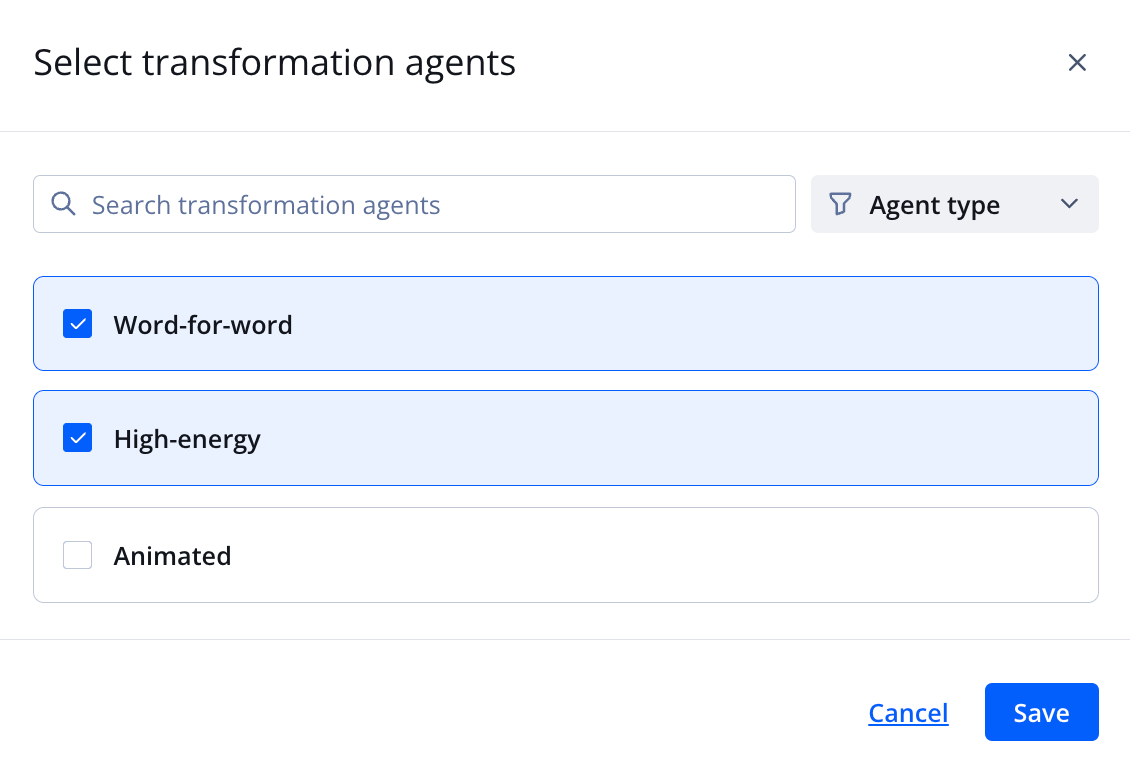
Select transformation agents panel
You may want articles from the feed to produce different media outputs as your content needs change. Updating the feed’s transformation agents changes how JWX Studio processes newly ingested articles.
Changes apply only to articles retrieved after you save the updated selection.
Follow these steps:
-
On the Properties page, click the name of a property. The property settings appear.
-
Under Integrations, click Studio Article Feeds (RSS). The Studio article feeds tab opens.
-
Click the name of a feed. The feed settings appear.
-
Under Transformation agents, click Edit selection. The Select transformation agents panel opens.
-
(Optional) In the search field, enter the partial or full name of a transformation to filter the list.
-
(Optional) From the Agent type dropdown menu, select an option to filter the list of transformation agents.
-
Select one or more agents.
You can also deselect agents.
-
Click Save. The Select transformation agents panel closes. The agents are listed under Transformation agents, and the number of agents is displayed in the Transformation agents card at the top of the page.
-
On the feed settings page, click Save.
Delete a JWX Studio article feed
You may want to remove a feed that is no longer needed. Deleting the JWX Studio article feed removes its configuration and stops JWX Studio from ingesting additional articles from it. All created projects and media outputs are retained.
Deleting a JWX Studio article feed is permanent and irreversible. We recommend deactivating the article feed if it may be reused.
Follow these steps:
- On the Properties page, click the name of a property. The property settings appear.
- Under Integrations, click Studio Article Feeds (RSS). The Studio article feeds tab opens.
- Click the name of a feed. The feed settings appear.
- Click Delete Studio article feed. A pop-up window appears.
- Click Delete. The JWX Studio article feed is deleted.
Updated about 2 months ago