
Transform articles from an RSS feed ᴮᴱᵀᴬ
Automatically apply JWX Studio transformations as articles are ingested
You may want to extend the value of articles published on your site by turning them into narrated audio, short-form video, and other media that help you connect with audiences in new ways. When articles are published frequently, repurposing each one individually can be difficult to scale.
A JWX Studio article feed connects an article RSS feed to JWX Studio and allows you to assign one or more transformation agents to the feed. As each article is ingested, JWX Studio:
- Creates a new project
- Uses the article as the project source
- Transforms the article into various media outputs
Prerequisites
Before creating a JWX Studio article feed, ensure that your article RSS feed meets the following requirements.
| Item | Description |
|---|---|
| Feed Formatting | RSS version and XML namespace requirements Requirements:
|
| Required Fields | Article identification, title, content, and author information Always required:
|
| Optional fields | Article thumbnail and publication date metadata Fields:
|
| Feed access | Publicly accessible article RSS feed Feeds that require authentication are not supported. |
Create a Studio article feed
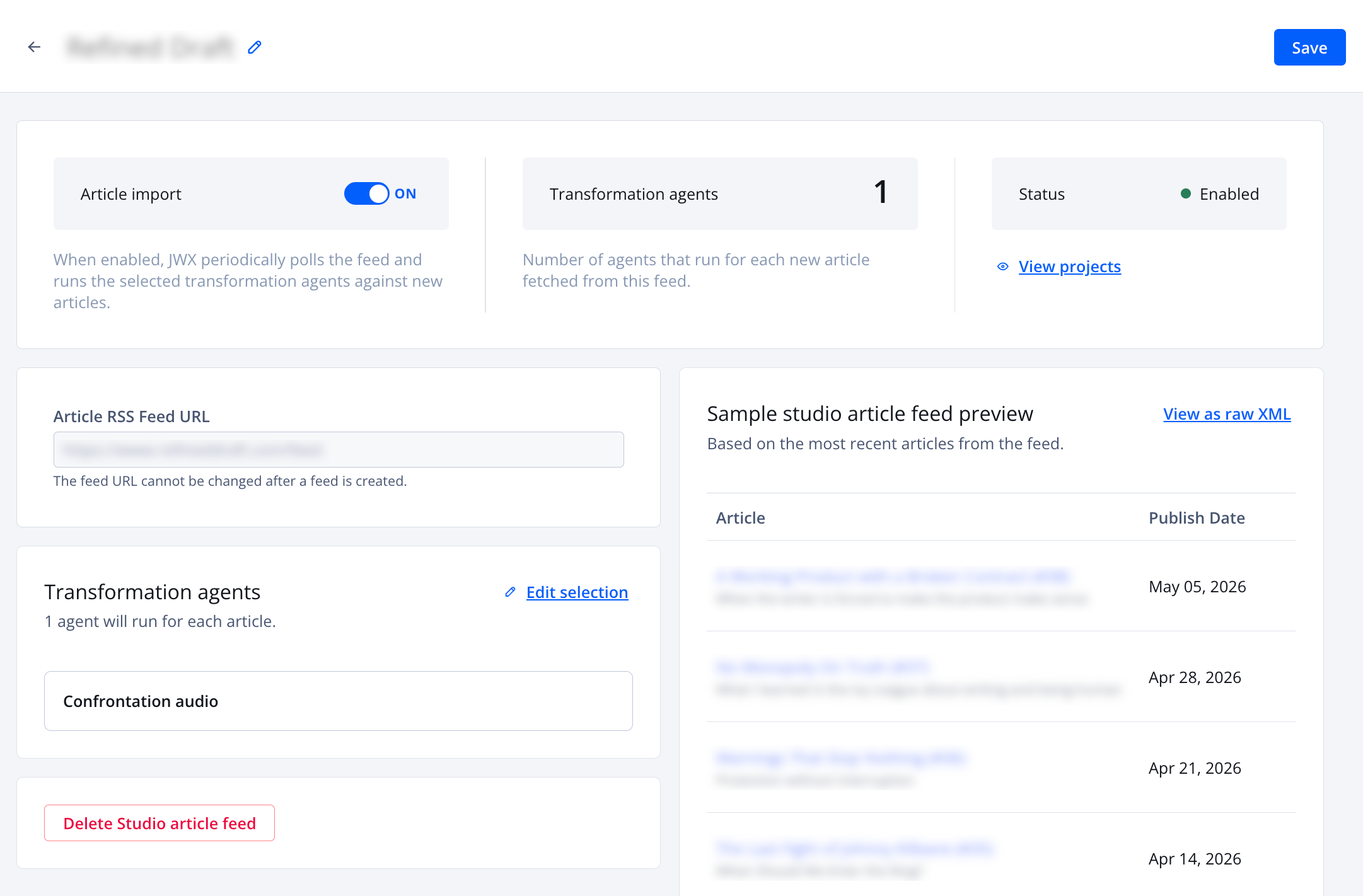
JWX Studio article feed settings
Follow these steps to create a JWX Studio article feed:
-
On the Properties page, click the name of a property. The property settings appear.
-
Under Integrations, click Studio Article Feeds (RSS). The Studio article feeds tab opens.
-
Click Add feed. The Add studio article feed panel opens.
-
Enter the Article RSS Feed URL.
The article RSS feed must be publicly accessible. Feeds that require authentication are not supported.
- Enter the Title of the feed.
- Select the transformation agents:
-
Click + Add Transformations. The Select transformation agents panel opens.
-
(Optional) In the search field, enter the partial or full name of a transformation to filter the list.
-
(Optional) From the Agent type dropdown menu, select an option to filter the list of transformation agents.
-
Select one or more agents.
-
Click Save. The Select transformation agents panel closes.
-
- Click Add feed. The Add studio article feed panel closes. The feed settings appear.
- Toggle Article import to ON. The Status changes to Enabled.
- Click Save.
Updated about 2 months ago