
Properties overview
Learn about properties in your JWX account
In the JWX dashboard, a property represents a container for content, players, apps, analytics, and monetization. Many organizations use separate properties for different brands, regions, environments (such as production and staging), or business units.
In JWX, a property may also be referred to as a site.
Each property has its own:
- Media library
- Player and app configurations
- Advertising configurations
- Property-level analytics and reporting
- User access controls
Property settings let you configure how a single property behaves across playback, monetization, and access control. These settings apply to all media, players, and experiences associated with the property unless overridden at a lower level.
You can use property settings to establish defaults, rules, and integrations that should remain consistent across your site content and delivery workflows.
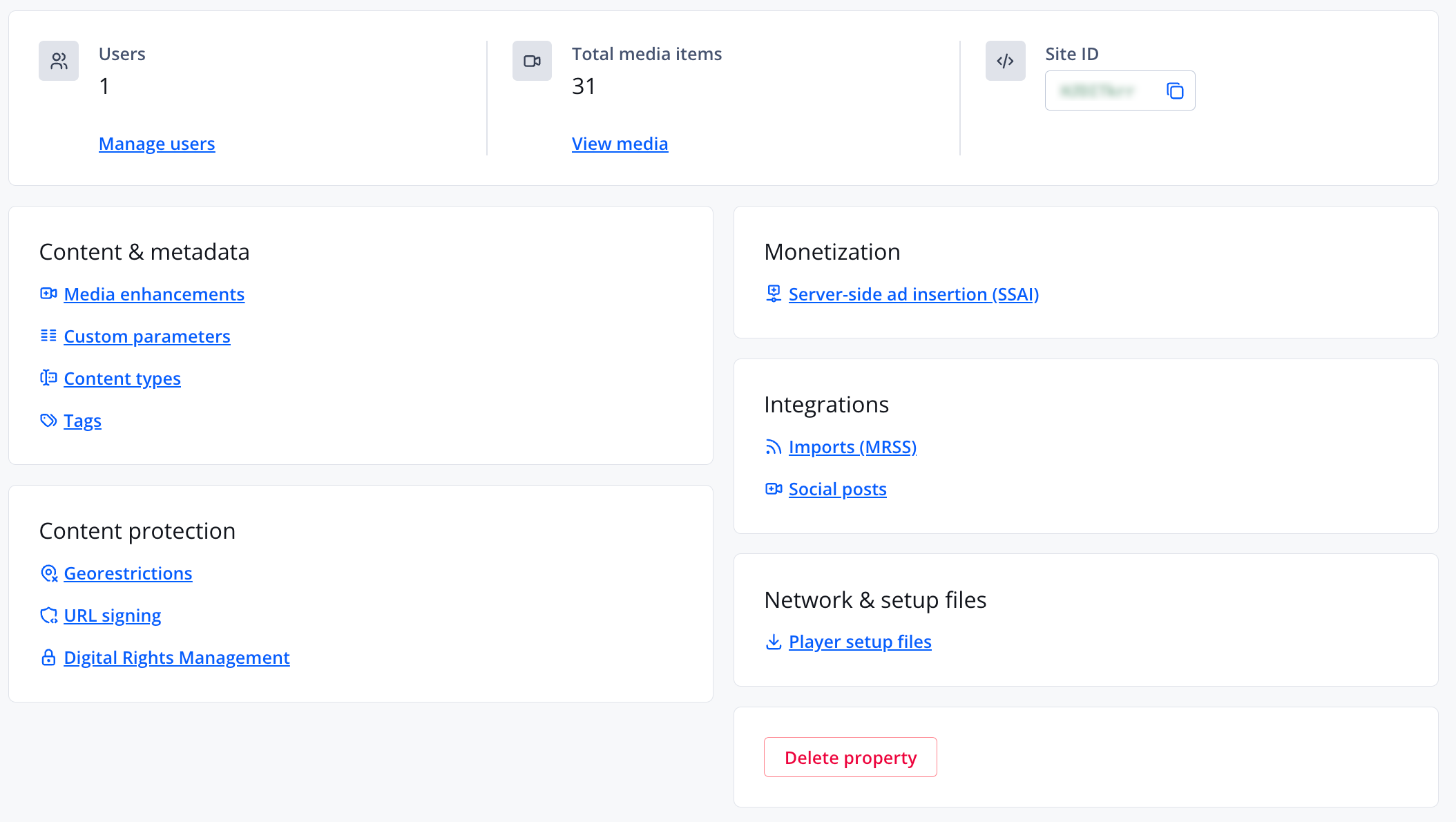
Property settings
You can perform actions in your property settings based on your assigned JWX role. Not all roles have access to every setting. The table below outlines the actions available to each role, allowing you to quickly understand what you are permitted to view or manage within a property.
| Action | Roles | Description |
|---|---|---|
| Account users | Admin | Manage your JWX users and assign them full or limited access to your account properties: |
| Content types | Admin | Classify media in your app using categories with shared custom parameters: |
| Custom parameters | Admin | Define default custom metadata key-value pairs that apply to all media across your property: |
| Digital Rights Management | Admin | Protect your media across multiple technologies and devices: |
| Georestrictions | Admin | Define rules that restrict from where content can be viewed: |
| Imports (MRSS) | Read only, Content editor, Manager, Admin | Bulk import content into your JWX account using an MRSS feed or only view the import: |
| Media enhancements | Admin | Configure video settings for your property: |
| Player setup files | Manager, Admin | Retrieve files and license keys for your player configuration: |
| Property management | Admin | Create, rename, or delete one or more properties within your JWX account: |
| Server-side ad insertion (SSAI) | Admin | Configure server-side advertising settings for streaming in your property: |
| Site ID | Admin | Copy the unique identifier for the property |
| Tags | Read only, Content editor, Manager, Admin | Create, edit, merge, delete, or only view tags across a property: |
| URL signing | Admin | Prevent unauthorized content downloads or player embeds: |
How do I navigate properties in the dashboard?
Switch properties
If you have multiple properties, follow this step to switch to a different property:
- At the top of the left navigation, select a PROPERTY from the dropdown menu. The dashboard reloads to the chosen property.
Updated 15 days ago