
Set up GAM mediation
Google Ad Manager (GAM) mediation allows your existing GAM demand — including AdX, GAM line items, and header bidding demand — to compete directly with JWX's Ad Server auction for each ad impression. Instead of running independent auctions, both demand sources participate in a single decision, allowing the highest-value eligible ad to serve.
With GAM mediation, you can:
- Maximize revenue by allowing JWX and GAM demand to compete
- Continue using your existing GAM demand configuration
- Configure mediation on a per-ad-break basis
- Monitor mediated auctions using existing reporting
How GAM mediation works
When enabled with JWX, GAM mediation follows this workflow:
- The player starts an ad break configured for GAM mediation.
- JWX runs its internal auction and selects a winning bid.
- JWX passes the winning bid price and cached creative URL to Google Ad Manager.
- Google Ad Manager evaluates the JWX bid alongside AdX, GAM line items, and other configured demand.
- The highest-value eligible demand source serves the ad.
Prerequisites
| Item | Description |
|---|---|
| GAM mediation entitlement | JWX entitlement Contact your JWX representative for more information. |
| Google Ad Manager configuration | Required GAM setup If you require assistance, contact your GAM representative. |
| Ad server access | Permissions to create and target line items in the JWX Ad Server |
Set up GAM mediation
You can set up GAM mediation with JWX using either of two methods:
- (Recommended) Static GAM tag
- Dynamic GAM tag
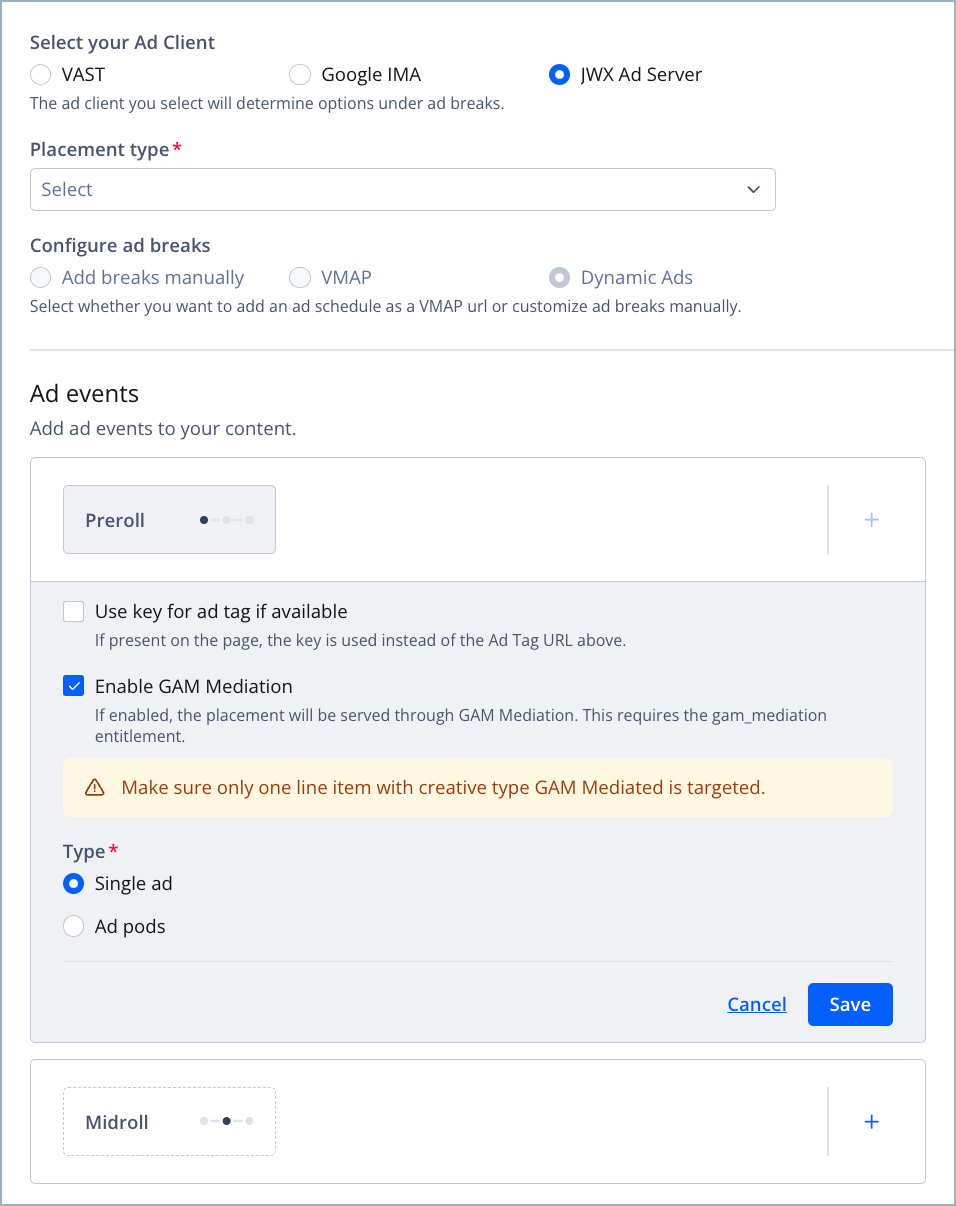
Enabling GAM mediation for an ad break
Using a static GAM tag
JWX recommends this workflow. Use it when all players should apply the same GAM tag.
During each mediated auction, JWX uses the tag configured on the GAM-mediated creative to generate the request sent to GAM.
Follow these steps to set up GAM mediation:
-
Create a GAM-mediated creative.
In step 4, set the Creative type to GAM mediation and configure the corresponding fields.
-
Target only one GAM-mediated line item to each inventory target.
When defining your web rules, set either Placement (for Strategy Rules workflows) or Player (for non-Strategy Rules workflows) to Only and select a single inventory target.
Fallback behavior
If multiple mediated line items are eligible for the same request, JWX uses the first matching line item and displays a warning in the dashboard.
If no eligible mediated line item is available for the request, JWX automatically falls back to the standard optimized auction to ensure ad delivery continues uninterrupted.
-
Build a line item using your GAM-mediated creative.
When defining the line item’s general details, select your mediated Creative (step 3).
-
Define a GAM-mediated ad schedule.
In step 3, set the ad client to JWX Ad Server. Then, when adding Ad events to your ad delivery settings (step 3d), click Enable GAM Mediation for each ad event that should be GAM-mediated.
-
Configure an advertising experience using your GAM-mediated ad schedule.
In step 3, import your mediated schedule. If desired, you can also define a new ad schedule.
You can now advertise using GAM mediation with the JWX Ad Server.
Using a dynamic GAM tag
Use this workflow when you want to supply the GAM tag dynamically through Strategy Rules instead of storing it on the creative.
During each mediated auction, JWX retrieves the tag from the configured Strategy Rules key and uses it to generate the request sent to Google Ad Manager.
Follow these steps to set up GAM mediation:
-
Configure your ad tag using a Strategy Rules key.
-
Create a GAM-mediated creative.
In step 4, set the Creative type to GAM mediation and configure the corresponding fields. However, leave the Tag URL blank so Strategy Rules can populate it dynamically.
-
Target only one GAM-mediated line item to each player.
When defining your web rules, set Players to Only and select a single player to target.
Fallback details
If multiple mediated line items are eligible for the same player, JWX uses the first matching line item and displays a warning in the dashboard.
If no eligible mediated line item is available for the player, JWX automatically falls back to the standard optimized auction to ensure ad delivery continues uninterrupted.
-
Build a line item using your GAM-mediated creative.
When defining the line item’s general details, select your mediated Creative (step 3).
-
Define a GAM-mediated ad schedule.
In step 3, set the ad client to JWX Ad Server. Then, when adding Ad events to your ad delivery settings (step 3d), click Enable GAM Mediation for each ad event that should be GAM-mediated.
-
Configure an advertising experience using your GAM-mediated ad schedule.
In step 3, import your mediated schedule. If desired, you can also define a new ad schedule.
You can now advertise using GAM mediation with the JWX Ad Server.
Updated about 2 months ago